BITS Pilani Mobile Studio Guide

Generated from prompt:

Create a professional PowerPoint presentation titled 'BITS Pilani – Mobile Studio Implementation Guide' for professors, instructors, and SMEs. It should explain how to record high-quality educational videos using portable or home studios. Include relevant visuals, diagrams, and illustrations on each slide such as studio setups, lighting diagrams, and mic placement guides. Slide outline: 1. Title: BITS Pilani – Mobile Studio Implementation Guide (with a clean hero image of a compact recording setup) 2. Purpose & Overview: Why this guide matters and key outcomes 3. Studio Setup Options: Travelling Mobile Studio, Home Studio, Minimum Plug & Play (with icons for each) 4. Travelling Mobile Studio Kit: Equipment list + setup tips (backpack diagram) 5. Home Studio (Semi-Permanent): Equipment + setup tips (room layout illustration) 6. Minimum Plug & Play: Essentials + use cases (phone setup visual) 7. Green Screen Setup: Do’s & Don’ts + framing diagram 8. Lighting – 3-Point Setup: labeled diagram with key, fill, and back light 9. Audio – Lavalier Mic Placement: correct placement + audio tips 10. Camera Setup & Framing: wrong vs. right visuals 11. Presenter Preparation: Do’s & Don’ts visual split 12. Shoot Workflow: Before, During, After checklist 13. File Management & Delivery: specs, naming format, upload process 14. Quick Reference Checklists: travel and pre-shoot checklists 15. Implementation Summary & Next Steps: key takeaways, next steps, and resources. Style: clean, modern, professional BITS Pilani branding (maroon, gold, white). Include realistic illustrations and icons. Visual consistency across all slides.

This professional guide for BITS Pilani educators outlines portable and home studio setups for high-quality educational videos. Covering equipment, lighting, audio, framing, workflows, and file manage

November 28, 202515 slides
Slide 1 of 15

Slide 1 - BITS Pilani – Mobile Studio Implementation Guide

The slide serves as the title for a guide from BITS Pilani on implementing a Mobile Studio. It features the main title "BITS Pilani – Mobile Studio Implementation Guide" and a subtitle describing it as a "High-Quality Educational Video Recording Guide."

BITS Pilani – Mobile Studio Implementation Guide

High-Quality Educational Video Recording Guide

Source: Hero image of a compact recording setup with microphone, camera, and lights on a neutral background. Include BITS Pilani logo in maroon and gold.

Speaker Notes
This title slide sets a professional tone with clean visuals aligned to BITS Pilani branding (maroon, gold, white).
Slide 1 - BITS Pilani – Mobile Studio Implementation Guide
Slide 2 of 15

Slide 2 - Purpose & Overview

The slide outlines the purpose of enhancing video quality to create engaging online learning experiences while ensuring consistent production standards across all recordings. It also emphasizes simplifying setups for busy professors and experts, enabling professional results through portable or home studios.

Purpose & Overview

  • Enhance video quality for engaging online learning experiences
  • Achieve consistent production standards across all recordings
  • Simplify setups for busy professors and subject matter experts
  • Deliver professional results with portable or home studios

Source: BITS Pilani – Mobile Studio Implementation Guide

Speaker Notes
Explain why this guide matters: Enhance educational video quality for engaging online learning. Key outcomes: Consistent production, easy setups, professional results for professors and SMEs.
Slide 2 - Purpose & Overview
Slide 3 of 15

Slide 3 - Agenda

The agenda slide outlines a guide for high-quality video recording, starting with an introduction to its purpose and key outcomes. It then covers studio setup options like mobile, home, and plug-and-play configurations, followed by equipment and techniques for lighting, audio, framing, and green screens, and concludes with workflow steps including preparation, shooting, file management, checklists, and next actions.

Agenda

  1. Introduction and Overview
  2. Purpose of the guide and key outcomes for high-quality video recording.

  3. Studio Setup Options
  4. Travelling mobile, home semi-permanent, and minimum plug & play setups with icons.

  5. Equipment and Techniques
  6. Detailed kits, lighting, audio, camera framing, and green screen best practices.

  7. Workflow and Implementation
  8. Preparation, shooting process, file management, checklists, and next steps.

Slide 3 - Agenda
Slide 4 of 15

Slide 4 - Travelling Mobile Studio Kit

The Travelling Mobile Studio Kit features a compact backpack that holds essential gear like a camera, lavalier mic, lights, and tripod, with organized compartments for protection and quick access. It enables assembly in under 5 minutes for on-location recording, balances weight for comfortable carrying, and includes a diagram of the backpack layout for optimal organization.

Travelling Mobile Studio Kit

  • Compact backpack holds camera, lavalier mic, lights, and tripod.
  • Organized compartments protect gear and enable quick access.
  • Assemble setup in under 5 minutes for efficient on-location recording.
  • Balance weight distribution for comfortable extended carrying.
  • Include diagram of backpack layout for optimal organization.
Slide 4 - Travelling Mobile Studio Kit
Slide 5 of 15

Slide 5 - Home Studio (Semi-Permanent)

The Home Studio (Semi-Permanent) slide features an image of a dedicated setup with a camera, ring lights for clear video, acoustic panels to reduce echo and noise, and tips for selecting a quiet room while organizing cables neatly. It includes an illustrated layout showing optimal placement of furniture and gear.

Home Studio (Semi-Permanent)

!Image

  • Dedicated camera and ring lights for clear video.
  • Acoustic panels to minimize echo and noise.
  • Select quiet room; organize cables neatly.
  • Illustrated layout with furniture and gear placement.

Source: Image from Wikipedia article "Home recording"

Slide 5 - Home Studio (Semi-Permanent)
Slide 6 of 15

Slide 6 - Minimum Plug & Play

The "Minimum Plug & Play" slide outlines a simple setup for recording using a smartphone as the primary camera, an external mic for clear audio, and a basic tripod or stand for stability. This minimal approach enables instant plug-and-record functionality, making it ideal for quick lectures and demonstrations.

Minimum Plug & Play

  • Use smartphone as primary camera for simplicity.
  • Attach external mic for clear audio capture.
  • Secure device with basic tripod or stand.
  • Ideal for quick lectures and demonstrations.
  • Minimal setup: plug in and record instantly.

Source: BITS Pilani – Mobile Studio Implementation Guide

Speaker Notes
Essentials: Smartphone, external mic, basic stand. Use cases: Quick lectures, demos. Visual: Phone setup with tripod and light clip.
Slide 6 - Minimum Plug & Play
Slide 7 of 15

Slide 7 - Green Screen Setup

The slide on Green Screen Setup features a two-column format, with the left side listing do's such as ensuring even lighting to avoid shadows, using a full-body green screen, wearing contrasting neutral clothing, and positioning the subject 3-4 feet from the screen for optimal framing. The right side outlines don'ts, including avoiding wrinkles by ironing or stretching the screen smooth, preventing spills to avoid stains, and steering clear of busy backgrounds that could disrupt chroma keying.

Green Screen Setup

Do’sDon’ts
Ensure even lighting across the entire screen to avoid shadows. Use a green screen that provides full body coverage. Wear neutral clothing that contrasts with the green background. Framing diagram: Position subject 3-4 feet from screen, centered with proper headroom and nose room for seamless keying.Avoid wrinkles or folds in the screen; iron or stretch it smooth. Prevent spills or liquids near the setup to avoid stains. Do not use busy backgrounds behind the screen that could interfere with chroma keying.
Slide 7 - Green Screen Setup
Slide 8 of 15

Slide 8 - Lighting – 3-Point Setup

The slide titled "Lighting – 3-Point Setup" illustrates a fundamental photography or video lighting technique using three lights. The key light offers primary front illumination, the fill light reduces shadows from the key, and the back light adds depth by separating the subject from the background.

Lighting – 3-Point Setup

!Image

  • Key light: Provides main illumination from the front.
  • Fill light: Softens shadows created by the key light.
  • Back light: Separates subject from background for depth.

Source: Wikipedia: Three-point lighting

Speaker Notes
Use maroon and gold tones for labels. Emphasize even, flattering illumination to enhance video quality in educational recordings.
Slide 8 - Lighting – 3-Point Setup
Slide 9 of 15

Slide 9 - Audio – Lavalier Mic Placement

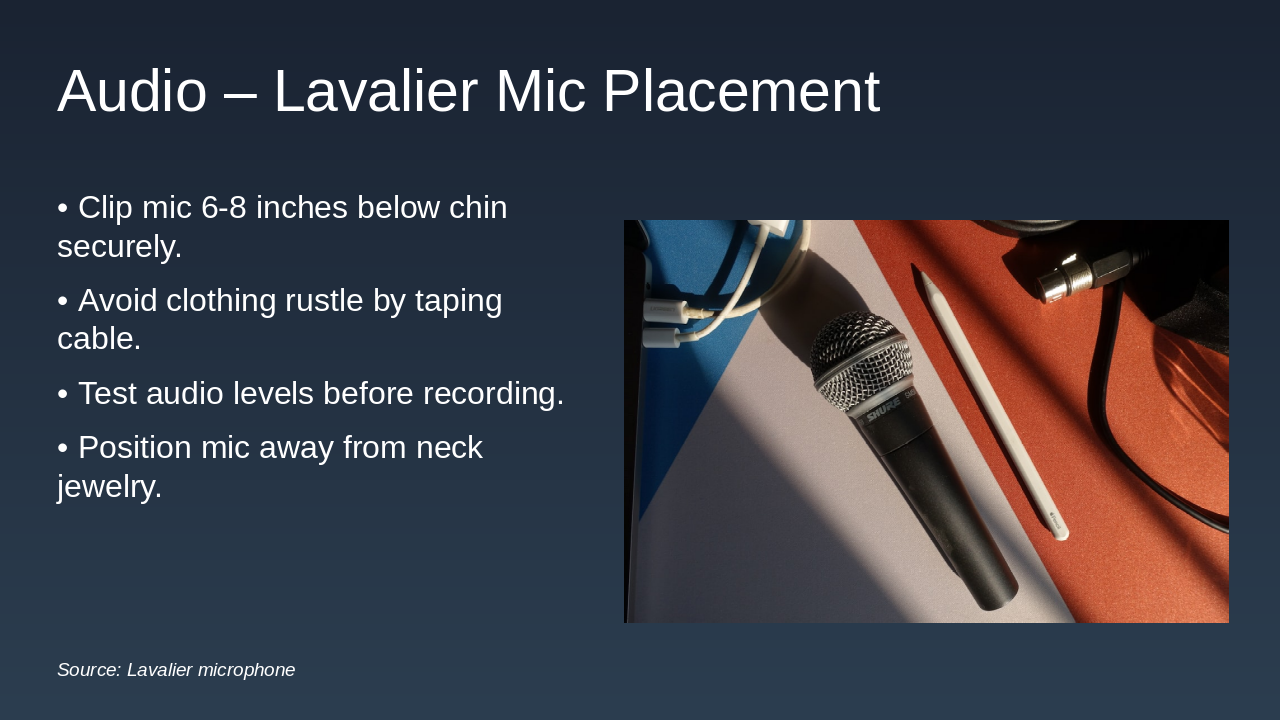
The slide on "Audio – Lavalier Mic Placement" provides key guidelines for optimal microphone positioning, recommending to clip the mic 6-8 inches below the chin securely and position it away from neck jewelry to minimize interference. It also advises taping the cable to avoid clothing rustle and testing audio levels before recording.

Audio – Lavalier Mic Placement

!Image

  • Clip mic 6-8 inches below chin securely.
  • Avoid clothing rustle by taping cable.
  • Test audio levels before recording.
  • Position mic away from neck jewelry.

Source: Lavalier microphone

Speaker Notes
Explain the importance of proper mic placement for clear audio. Demonstrate clipping technique and common mistakes to avoid.
Slide 9 - Audio – Lavalier Mic Placement
Slide 10 of 15

Slide 10 - Camera Setup & Framing

The slide contrasts incorrect camera setups, which feature off-center framing, poor lighting with shadows, and distracting cluttered backgrounds that undermine professionalism and engagement, against correct ones that use eye-level positioning, the rule of thirds for balanced composition, and clean neutral backgrounds to maintain focus on the presenter and boost clarity. This guidance aims to enhance natural interaction and educational impact in presentations.

Camera Setup & Framing

Wrong SetupRight Setup
Off-center framing distracts from the presenter. Poor lighting creates shadows and uneven exposure. Background distractions like clutter pull focus away from the content, reducing professionalism and viewer engagement.Eye-level camera ensures natural interaction. Apply the rule of thirds for balanced composition. Clean, neutral background keeps attention on the presenter, enhancing clarity and educational impact.
Slide 10 - Camera Setup & Framing
Slide 11 of 15

Slide 11 - Presenter Preparation

The slide on Presenter Preparation offers guidance in two columns: "Do’s" recommend dressing in neutral colors, practicing scripts for natural delivery, and maintaining good posture to appear confident on camera. In contrast, the "Don’ts" advise against busy patterns or logos, reading directly from notes (opt for bullet points instead), and fidgeting to ensure focus remains on the content.

Presenter Preparation

Do’sDon’ts
Dress in neutral colors to avoid distractions. Practice your script thoroughly for natural delivery. Maintain good posture to appear confident and engaging on camera.Avoid busy patterns or logos that clash with visuals. Don’t read directly from notes; use bullet points instead. Refrain from fidgeting to keep the focus on your content.
Slide 11 - Presenter Preparation
Slide 12 of 15

Slide 12 - Shoot Workflow

The Shoot Workflow slide outlines key steps for a successful recording session, starting with checking equipment functionality and connections, reviewing the script, and rehearsing delivery. It continues by emphasizing steady pacing, direct eye contact with the camera, immediate footage review for quality, and promptly backing up files to secure storage.

Shoot Workflow

  • ✓ Check equipment functionality and connections
  • ✓ Review script and rehearse delivery
  • ✓ Maintain steady pacing throughout recording
  • ✓ Ensure direct eye contact with camera
  • ✓ Review footage for quality immediately after
  • ✓ Backup files to secure storage promptly

Source: BITS Pilani – Mobile Studio Implementation Guide

Speaker Notes
Emphasize the importance of this workflow for consistent high-quality recordings. Use tick icons for checklist items to visually reinforce completion steps.
Slide 12 - Shoot Workflow
Slide 13 of 15

Slide 13 - File Management & Delivery

The slide outlines the process for managing and delivering video files, including exporting them in 1080p MP4 format at 30fps and naming them with the convention [Course][Lecture][Date]. It also covers securely uploading to the BITS portal using the provided link, following a step-by-step diagram, and verifying file integrity before submission.

File Management & Delivery

  • Export videos in 1080p MP4 format at 30fps.
  • Name files using [Course][Lecture][Date] convention.
  • Upload securely to BITS portal via provided link.
  • Follow step-by-step diagram for complete process.
  • Verify file integrity before final submission.
Slide 13 - File Management & Delivery
Slide 14 of 15

Slide 14 - Quick Reference Checklists

The slide titled "Quick Reference Checklists" provides a bullet-point guide for preparing video or photography equipment before travel or shoots. It covers packing essentials like cameras, mics, lights, and tripods; fully charging batteries and devices; testing lighting for even illumination; checking audio levels and mic placement; and verifying framing, background, and focus.

Quick Reference Checklists

  • Pack travel essentials: camera, mics, lights, tripod.
  • Charge all batteries and devices fully before departure.
  • Test lighting setup and adjust for even illumination.
  • Check audio levels and secure mic placement.
  • Verify framing, background, and focus alignment.
Speaker Notes
Travel: Pack essentials, charge batteries. Pre-shoot: Lighting test, audio check, framing. Compact lists with bullet points and icons.
Slide 14 - Quick Reference Checklists
Slide 15 of 15

Slide 15 - Implementation Summary & Next Steps

The slide summarizes key takeaways, emphasizing that simple setups can produce professional video results and should be tailored to needs like mobile, home, or plug-and-play studios. It outlines next steps including scheduling hands-on training, visiting BITS Media Lab for resources, reaching out for support, and empowering teaching with high-quality videos, under the subtitle "Ready to Get Started?"

Implementation Summary & Next Steps

**Key Takeaways:

  • Simple setups deliver professional results.
  • Tailor your studio to your needs: mobile, home, or plug & play.

Next Steps:

  • Schedule hands-on training.
  • Visit BITS Media Lab for resources.
  • Reach out for ongoing support.

Empower your teaching with high-quality videos!**

Ready to Get Started?

Source: BITS Pilani – Mobile Studio Implementation Guide

Speaker Notes
Key takeaways: Simple setups yield pro results. Next steps: Schedule training, access resources at BITS media lab. Contact for support; include call-to-action graphic. Closing message: 'Unlock professional video production today.' Call-to-action: 'Contact us to schedule training and access resources at BITS Media Lab.'
Slide 15 - Implementation Summary & Next Steps

Discover More Presentations

Explore thousands of AI-generated presentations for inspiration

Browse Presentations
Powered by AI

Create Your Own Presentation

Generate professional presentations in seconds with Karaf's AI. Customize this presentation or start from scratch.

Create New Presentation

Powered by Karaf.ai — AI-Powered Presentation Generator