Outpatient Therapy Billing & Admin Training (40 chars)

Generated from prompt:

Create a 20-slide billing and admin training presentation for outpatient therapy (LCSW) for Peace of Mind Mental Health Group. Include detailed how-to instructions and realistic platform screenshots. Cover: 1. Overview of outpatient therapy billing workflow 2. Patient intake and insurance verification - Availity portal steps - NaviNet verification steps - Explanation of Promise ID - MCO overview and PerformCare specifics 3. TheraNest/Ensora walkthrough - Adding clients - Creating and submitting claims - Posting payments - Managing telehealth sessions 4. Telehealth billing rules and modifiers 5. Common denials and troubleshooting 6. Compliance and best practices The design should be professional and branded with Peace of Mind Mental Health Group’s logo and colors (green tones). Use clear visuals and callouts for each step, and include placeholder mock screenshots that resemble Availity, NaviNet, and TheraNest interfaces.

20-slide professional training for Peace of Mind Mental Health Group covers billing workflow, insurance verification (Availity/NaviNet/Promise ID/PerformCare), TheraNest how-tos (clients/claims/paymen

December 10, 202520 slides
Slide 1 of 20

Slide 1 - Welcome to Billing & Admin Training

This title slide welcomes participants to Billing & Admin Training. The subtitle specifies Outpatient Therapy (LCSW) Billing Workflow & Best Practices.

Welcome to Billing & Admin Training

Outpatient Therapy (LCSW) Billing Workflow & Best Practices.

Source: Peace of Mind Mental Health Group logo in green tones.
Slide 1 - Welcome to Billing & Admin Training
Slide 2 of 20

Slide 2 - Presentation Agenda

This agenda slide outlines a presentation on outpatient therapy billing workflows. It covers billing overview, patient intake/verification, TheraNest/Ensora walkthrough, telehealth rules, and denials/compliance best practices.

Presentation Agenda

  1. Billing Workflow Overview
  2. High-level overview of outpatient therapy billing process.

  3. Patient Intake & Verification
  4. Availity, NaviNet steps, Promise ID, and MCO overview.

  5. TheraNest/Ensora Walkthrough
  6. Adding clients, claims, payments, and telehealth management.

  7. Telehealth Billing Rules
  8. Specific modifiers and guidelines for telehealth claims.

  9. Denials, Compliance & Best Practices

Troubleshooting denials and essential compliance tips. Source: Peace of Mind Mental Health Group Billing Training

Slide 2 - Presentation Agenda
Slide 3 of 20

Slide 3 - Peace of Mind Mental Health Group: Billing & Admin Training

This section header slide from the Peace of Mind Mental Health Group Billing & Admin Training introduces Section 1. It overviews the outpatient therapy billing workflow, outlining the high-level process from intake to payment posting for LCSW services.

Peace of Mind Mental Health Group: Billing & Admin Training

1

Overview of Outpatient Therapy Billing Workflow

High-level process from intake to payment posting for LCSW services.

Speaker Notes
High-level process from intake to payment posting for LCSW services. Branded with green tones and logo.
Slide 3 - Peace of Mind Mental Health Group: Billing & Admin Training
Slide 4 of 20

Slide 4 - Billing Workflow Diagram

Slide 4 - Billing Workflow Diagram
Slide 5 of 20

Slide 5 - Workflow Visual Aid

The "Workflow Visual Aid" slide visually outlines a four-stage process for client management in TheraNest. Key steps include Intake and Insurance Verification, Client Setup in TheraNest, Service Delivery and Claims, and Payments, Denials, Compliance.

Workflow Visual Aid

!Image

  • Intake and Insurance Verification
  • Client Setup in TheraNest
  • Service Delivery and Claims
  • Payments, Denials, Compliance

Source: Photo by Cole Johnson on Unsplash

Slide 5 - Workflow Visual Aid
Slide 6 of 20

Slide 6 - Peace of Mind Mental Health Group

This section header slide from "Peace of Mind Mental Health Group" introduces Section 2: Patient Intake & Insurance Verification. The subtitle emphasizes step-by-step eligibility checks using portals.

Peace of Mind Mental Health Group

2

Patient Intake & Insurance Verification

Step-by-step eligibility checks using portals

Source: Billing and Admin Training Presentation

Speaker Notes
Section 2 covers step-by-step eligibility checks using Availity and NaviNet portals, Promise ID explanation, and MCO/PerformCare overview. Use green-toned branding, clear visuals, and placeholder screenshots.
Slide 6 - Peace of Mind Mental Health Group
Slide 7 of 20

Slide 7 - Availity Portal Steps

The Availity Portal Steps slide outlines four key actions for checking member eligibility. Log in to Availity.com, search by member ID or name, verify coverage/copay/auth requirements, and screenshot the full eligibility response.

Availity Portal Steps

  • Log in to Availity.com
  • Search by member ID or name
  • Verify coverage, copay, auth requirements
  • Screenshot full eligibility response

Source: placeholderavailityscreenshot_green.png

Speaker Notes
Demo each step live: emphasize verifying all details and saving screenshots for compliance records.
Slide 7 - Availity Portal Steps
Slide 8 of 20

Slide 8 - Mock Availity Screenshot

This slide shows a mock Availity screenshot for entering patient details in the top search bar and reviewing eligibility results in the table below. It highlights key coverage and policy details, including copays, deductibles, and active dates.

Mock Availity Screenshot

!Image

  • Enter patient details in top search bar.
  • Review eligibility results in table below.
  • Check highlighted coverage and policy details.
  • Note copay, deductibles, and active dates.

Source: Availity Portal Mockup

Speaker Notes
Placeholder Availity interface with callouts: Search bar, eligibility results, coverage details highlighted.
Slide 8 - Mock Availity Screenshot
Slide 9 of 20

Slide 9 - NaviNet Verification Steps

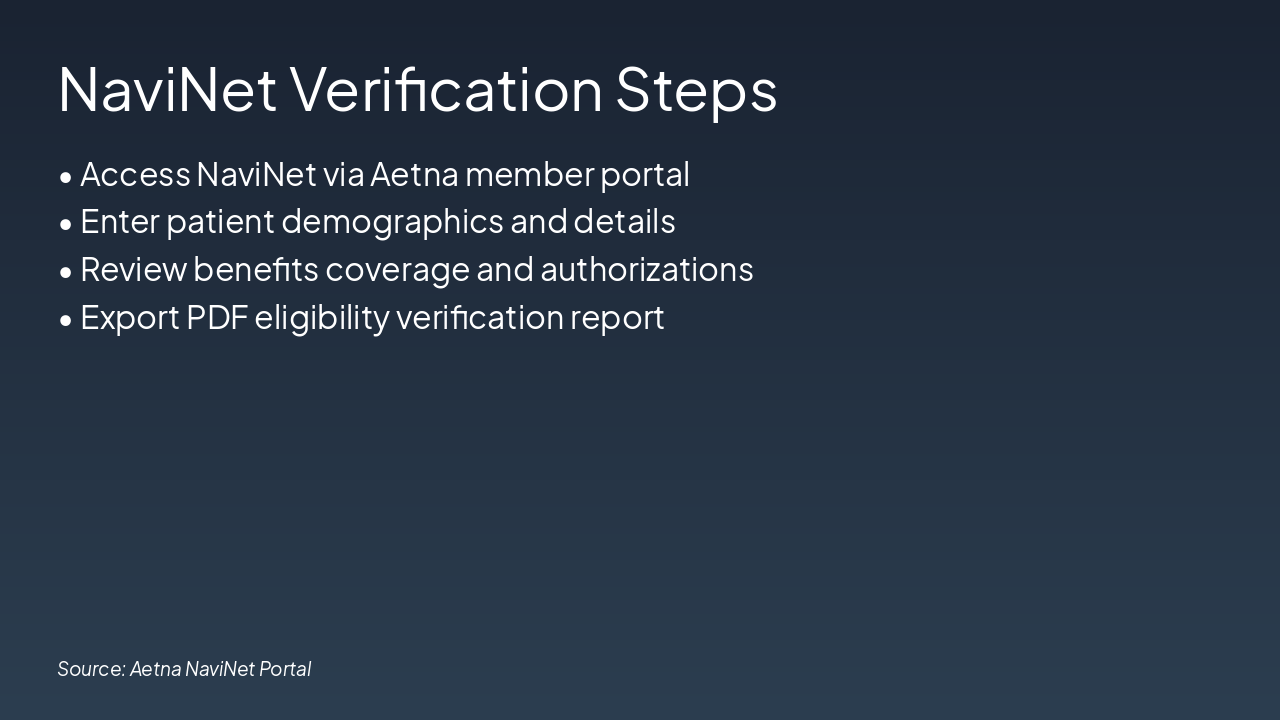
The "NaviNet Verification Steps" slide outlines a four-step process for eligibility checks. It includes accessing NaviNet via the Aetna member portal, entering patient demographics, reviewing benefits and authorizations, and exporting a PDF verification report.

NaviNet Verification Steps

  • Access NaviNet via Aetna member portal
  • Enter patient demographics and details
  • Review benefits coverage and authorizations
  • Export PDF eligibility verification report

Source: Aetna NaviNet Portal

Speaker Notes
Walk through each step live; highlight PDF export for records. Use screenshot mockups.
Slide 9 - NaviNet Verification Steps
Slide 10 of 20

Slide 10 - Mock NaviNet Screenshot

The slide displays a mock NaviNet screenshot highlighting key search and verification steps. Users should enter a Promise ID or member details in the search bar, review the Benefits Summary for coverage and eligibility, and verify Authorization Status for therapy services.

Mock NaviNet Screenshot

!Image

  • Enter Promise ID or member details in search bar
  • Review Benefits Summary for coverage and eligibility
  • Verify Authorization Status for therapy services

Source: NaviNet Provider Portal

Speaker Notes
Placeholder NaviNet screen with annotations: Member search, benefits summary, auth status. Demonstrates key verification steps using Promise ID for outpatient therapy billing.
Slide 10 - Mock NaviNet Screenshot
Slide 11 of 20

Slide 11 - Promise ID Explanation

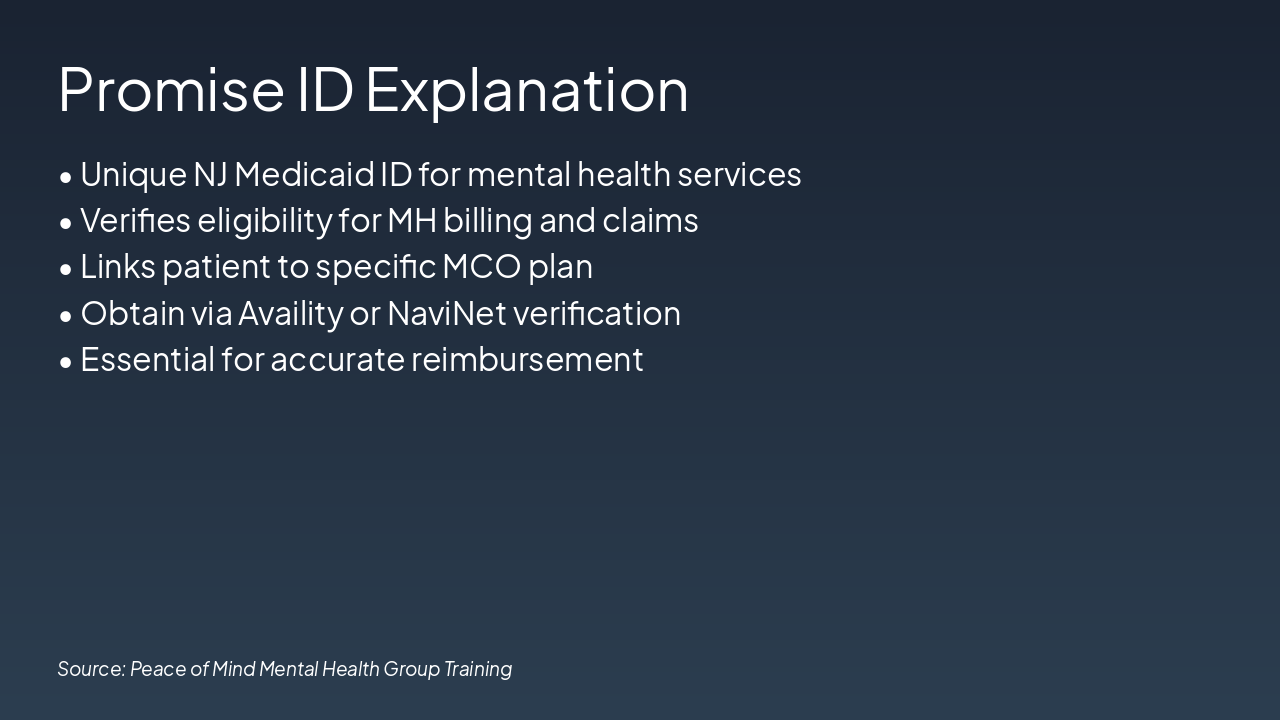
The Promise ID is a unique NJ Medicaid identifier for mental health services that verifies patient eligibility for MH billing and claims while linking them to a specific MCO plan. Obtain it via Availity or NaviNet verification, as it is essential for accurate reimbursement.

Promise ID Explanation

  • Unique NJ Medicaid ID for mental health services
  • Verifies eligibility for MH billing and claims
  • Links patient to specific MCO plan
  • Obtain via Availity or NaviNet verification
  • Essential for accurate reimbursement

Source: Peace of Mind Mental Health Group Training

Speaker Notes
Emphasize Promise ID's role in MH-specific verification; distinct from standard Medicaid ID; demo lookup in Availity/NaviNet.
Slide 11 - Promise ID Explanation
Slide 12 of 20

Slide 12 - MCO Overview & PerformCare

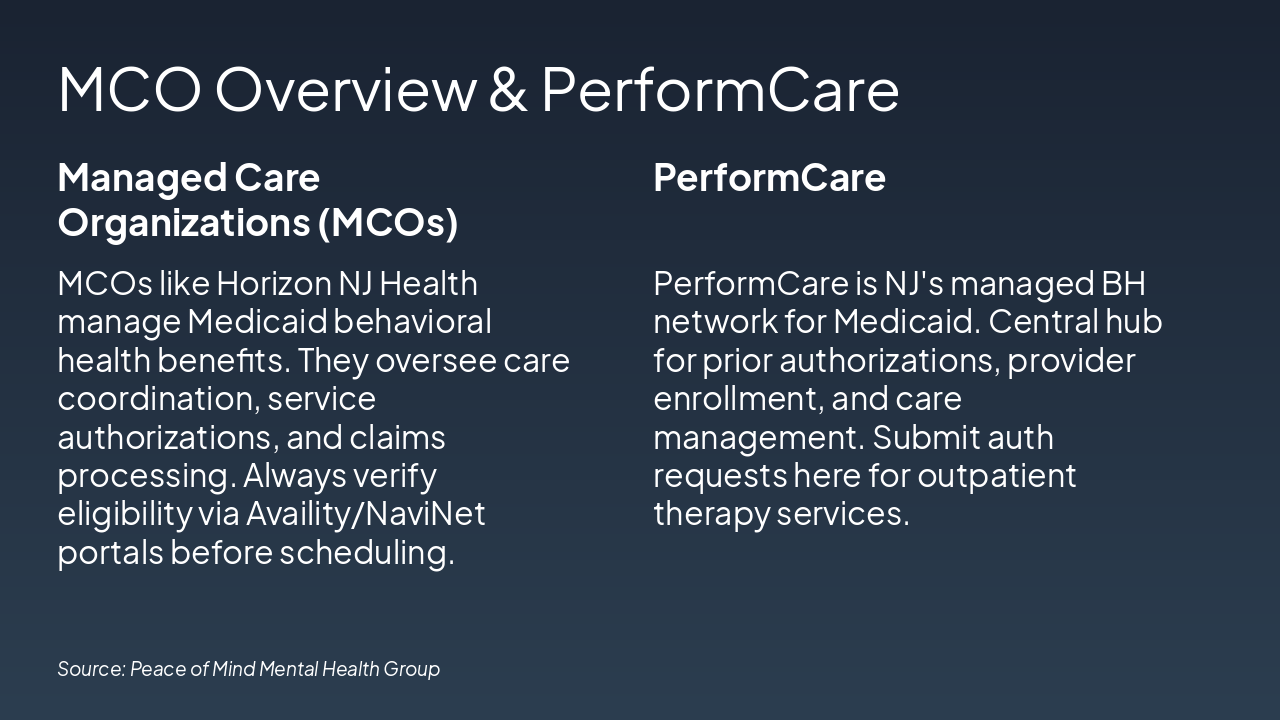
MCOs like Horizon NJ Health manage Medicaid behavioral health benefits, overseeing care coordination, authorizations, claims processing, and require eligibility verification via Availity/NaviNet before scheduling. PerformCare is New Jersey's managed BH network for Medicaid, serving as the central hub for prior authorizations, provider enrollment, care management, and outpatient therapy auth requests.

MCO Overview & PerformCare

Managed Care Organizations (MCOs)PerformCare
MCOs like Horizon NJ Health manage Medicaid behavioral health benefits. They oversee care coordination, service authorizations, and claims processing. Always verify eligibility via Availity/NaviNet portals before scheduling.PerformCare is NJ's managed BH network for Medicaid. Central hub for prior authorizations, provider enrollment, and care management. Submit auth requests here for outpatient therapy services.

Source: Peace of Mind Mental Health Group

Speaker Notes
Highlight MCO role in NJ Medicaid BH billing; emphasize PerformCare for prior auths during verification.
Slide 12 - MCO Overview & PerformCare
Slide 13 of 20

Slide 13 - Peace of Mind Mental Health Group

This section header slide for Peace of Mind Mental Health Group introduces Section 3: TheraNest/Ensora Walkthrough. Its subtitle focuses on key admin tasks in practice management software.

Peace of Mind Mental Health Group

3

TheraNest/Ensora Walkthrough

Key admin tasks in practice management software.

Source: TheraNest/Ensora

Speaker Notes
Introduce Section 3: Hands-on walkthrough of key admin tasks including adding clients, creating and submitting claims, posting payments, and managing telehealth sessions in TheraNest/Ensora.
Slide 13 - Peace of Mind Mental Health Group
Slide 14 of 20

Slide 14 - Adding Clients

The slide "Adding Clients" outlines navigating to the Client tab, selecting New Client, and entering demographics, insurance details, and Promise ID. It then instructs assigning an LCSW as the primary provider, saving, and verifying the new client profile.

Adding Clients

  • Navigate to Client tab and select New Client.
  • Enter demographics, insurance details, and Promise ID.
  • Assign LCSW as the primary provider.
  • Save and verify the new client profile.

Source: TheraNest/Ensora Walkthrough

Speaker Notes
• Navigate Client tab → New Client • Enter demographics, insurance, Promise ID • Set LCSW as provider Include screenshot of TheraNest client entry screen with callouts.
Slide 14 - Adding Clients
Slide 15 of 20

Slide 15 - Mock TheraNest Add Client

This slide illustrates adding a new client in TheraNest by navigating to the Clients menu and selecting Add Client. It highlights entering demographics (name, DOB, address, phone), adding insurance details (policy ID, group number, Promise ID), reviewing the form, and clicking Save.

Mock TheraNest Add Client

!Image

  • Navigate to Clients menu and select Add Client.
  • Enter demographics: name, DOB, address, phone highlighted.
  • Add insurance: policy ID, group number, Promise ID.
  • Review form and click prominent Save button.

Source: Mock TheraNest interface screenshot

Speaker Notes
Demonstrate filling key fields; highlight required ones and insurance section for billing setup.
Slide 15 - Mock TheraNest Add Client
Slide 16 of 20

Slide 16 - Creating & Submitting Claims

The slide "Creating & Submitting Claims" provides a step-by-step guide for billing. It covers navigating to Billing → New Claim, selecting CPT 90837 with modifiers, entering patient and service details, reviewing for accuracy, and submitting electronically via the portal.

Creating & Submitting Claims

  • Navigate to Billing → New Claim
  • Select CPT 90837 with modifiers
  • Enter patient and service details
  • Review for accuracy and errors
  • Submit electronically via portal

Source: TheraNest

Speaker Notes
Demo TheraNest interface: Billing → New Claim. Highlight CPT 90837 (60-min psychotherapy) with mods like GT for telehealth. Show electronic submission portal. Include mock screenshot with callouts.
Slide 16 - Creating & Submitting Claims
Slide 17 of 20

Slide 17 - Mock Claims Submission

The "Mock Claims Submission" slide demonstrates the steps for submitting a claim form. It includes entering patient and insurance details, selecting CPT codes (e.g., 90834, 90837), adding accurate ICD-10 diagnosis codes, reviewing the form, and clicking Submit.

Mock Claims Submission

!Image

  • Enter patient details and insurance information
  • Select CPT codes (e.g., 90834, 90837)
  • Add ICD-10 diagnosis codes accurately
  • Review form and click Submit button

Source: TheraNest Mockup

Speaker Notes
Placeholder image of a claim submission form in TheraNest or similar platform. Include callouts for key fields: patient info, CPT codes (e.g., 90837), ICD-10 codes, diagnosis, and prominent 'Submit Claim' button. Brand with Peace of Mind Mental Health Group logo and green tones. Emphasize step-by-step submission process.
Slide 17 - Mock Claims Submission
Slide 18 of 20

Slide 18 - Posting Payments & Telehealth Sessions

This slide outlines posting payments from EOBs to patient claims, reconciling the ledger, and applying adjustments for denials or balances. It also covers logging telehealth sessions with the GT modifier and verifying billing compliance rules.

Posting Payments & Telehealth Sessions

  • Post payments from EOB to patient claims
  • Log telehealth sessions with GT modifier
  • Reconcile ledger after payment posting
  • Apply adjustments for denials or balances
  • Verify telehealth billing compliance rules
Slide 18 - Posting Payments & Telehealth Sessions
Slide 19 of 20

Slide 19 - Peace of Mind Mental Health Group

This section header slide from the "Peace of Mind Mental Health Group" presentation introduces Section 4: "Telehealth Billing Rules." The subtitle focuses on "Modifiers & compliance for virtual LCSW sessions."

Peace of Mind Mental Health Group

4

Telehealth Billing Rules

Modifiers & compliance for virtual LCSW sessions

Source: Billing & Admin Training: Outpatient Therapy (LCSW)

Speaker Notes
Introduce Section 4: Key modifiers (e.g., GT, 95), compliance requirements, and best practices for billing virtual LCSW telehealth sessions.
Slide 19 - Peace of Mind Mental Health Group
Slide 20 of 20

Slide 20 - Telehealth Modifiers Table

The Telehealth Modifiers Table lists CPT codes for mental health services, each paired with modifiers 95 and GT. It covers 90832 (30min psychotherapy), 90834 (45min therapy), 90837 (60min therapy), and 90791 (diagnostic evaluation).

Telehealth Modifiers Table

{ "headers": [ "CPT", "Modifier", "Use" ], "rows": [ [ "90832", "95, GT", "30min psychotherapy" ], [ "90834", "95, GT", "45min therapy" ], [ "90837", "95, GT", "60min therapy" ], [ "90791", "95, GT", "Diagnostic evaluation" ] ] }

Source: Peace of Mind Mental Health Group Billing Guide

Speaker Notes
Use modifiers 95 (synchronous telehealth) or GT (Medicare telehealth) appended to CPT codes for virtual sessions. Always verify payer requirements.
Slide 20 - Telehealth Modifiers Table

Discover More Presentations

Explore thousands of AI-generated presentations for inspiration

Browse Presentations
Powered by AI

Create Your Own Presentation

Generate professional presentations in seconds with Karaf's AI. Customize this presentation or start from scratch.

Create New Presentation

Powered by Karaf.ai — AI-Powered Presentation Generator