Slide 1 of 21
Slide 1 - GRAPHIC DESIGN BASICS
GRAPHIC DESIGN BASICS
Beginner Class Presented by: Joel OBIABO Understanding the foundations of graphic design and how to create visually appealing designs.
Generated from prompt:
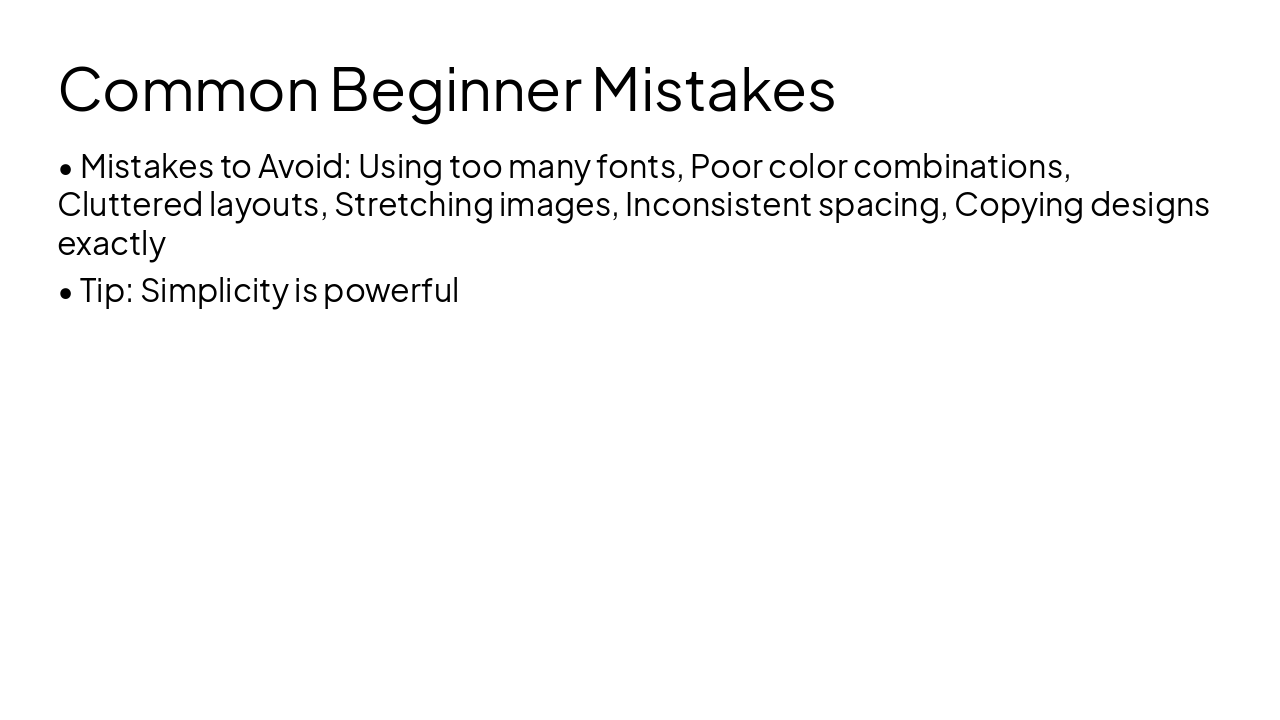
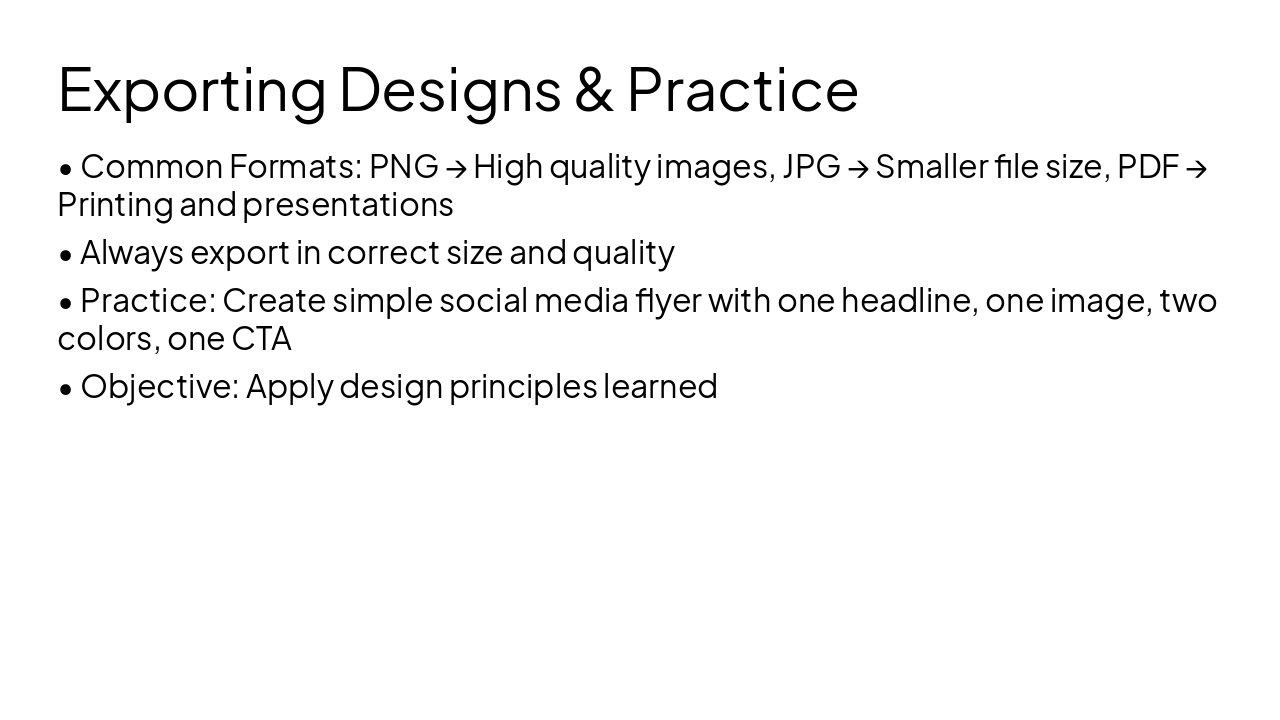
Create a PowerPoint slide with "GRAPHIC DESIGN BASICS CLASS Beginner Training Slide Deck Slide 1 — Welcome GRAPHIC DESIGN BASICS Beginner Class Presented by: Joel OBIABO Class Focus: Understanding the foundations of graphic design and how to create visually appealing designs. Slide 2 — What is Graphic Design? Definition Graphic design is the art of combining: Text Images Colors Layouts Shapes …to communicate messages visually. Examples of Graphic Design: Flyers Logos Social media posts Posters Business cards Websites Packaging designs Slide 3 — Why Graphic Design Matters Importance of Graphic Design Graphic design helps businesses and individuals: Attract attention Build trust Communicate clearly Promote products/services Increase brand awareness Real-Life Uses Real estate flyers Church programs Event banners Instagram posts Company branding Slide 4 — Types of Graphic Design Popular Areas in Design Social Media Design Branding & Logo Design Print Design Advertising Design UI/UX Design Motion Graphics Packaging Design Slide 5 — Basic Design Tools Software Designers Use Beginner Friendly: Canva Pixellab Adobe Express Professional Tools: Adobe Photoshop Adobe Illustrator CorelDRAW Figma Mobile Apps: Canva Mobile Pixellab Snapseed Slide 6 — Understanding Design Elements Core Elements of Design 1. Color Creates emotion and attraction. 2. Typography The style of text/fonts used. 3. Images Visuals that support the message. 4. Shapes Used to structure and beautify layouts. 5. Space Helps designs look clean and balanced. Slide 7 — Color Theory Basics Understanding Colors Primary Colors Red Blue Yellow Secondary Colors Green Orange Purple Warm Colors Feel energetic and bold. Cool Colors Feel calm and professional. Tip: Avoid using too many colors in one design. Slide 8 — Typography Basics Fonts Matter Font Categories Serif Fonts Sans Serif Fonts Script Fonts Display Fonts Typography Tips Use readable fonts Avoid too many font styles Maintain proper spacing Use font hierarchy Example: Heading → Bold & Large Body Text → Simple & Clean Slide 9 — Layout & Composition Arranging Design Elements A good layout helps viewers understand your design quickly. Key Principles: Alignment Balance Contrast Hierarchy Consistency Golden Rule: Keep your design clean and organized. Slide 10 — Importance of White Space Less Clutter = Better Design White space helps: Improve readability Focus attention Make designs look premium Prevent overcrowding Common Mistake: Trying to fill every empty space. Slide 11 — Image Selection Choosing the Right Images Use: High-quality images Relevant visuals Clear and sharp photos Avoid: Blurry images Overused visuals Poorly cropped pictures Tip: Images should support your message. Slide 12 — Branding Basics What is Branding? Branding is how people recognize a business. Brand Elements: Logo Brand colors Typography Visual style Importance: Consistent branding builds trust. Slide 13 — Flyer Design Tips Creating Effective Flyers A Good Flyer Should Have: Strong headline Clear message Attractive visuals Proper spacing Contact information Call to action Example CTA: “Call Now” “Book Today” “Invest Now” Slide 14 — Social Media Design Tips Designing for Instagram & Facebook Best Practices: Use bold headlines Keep text minimal Use brand colors Design for mobile screens Make visuals eye-catching Important: People scroll fast — grab attention quickly. Slide 15 — Common Beginner Mistakes Mistakes to Avoid Using too many fonts Poor color combinations Cluttered layouts Stretching images Inconsistent spacing Copying designs exactly Tip: Simplicity is powerful. Slide 16 — Design Process Step-by-Step Workflow Understand the goal Gather content Choose colors & fonts Create layout Add images Review & adjust Export final design Slide 17 — Exporting Designs Saving Your Work Common Formats: PNG → High quality images JPG → Smaller file size PDF → Printing and presentations Important: Always export in the correct size and quality. Slide 18 — Practice Exercise Class Activity Create a simple social media flyer using: One headline One image Two colors One call to action Objective: Apply the design principles learned today. Slide 19 — Career Opportunities Ways to Make Money with Graphic Design Freelancing Social media management Branding services Printing business Content creation Agency work Platforms: Fiverr Upwork Instagram LinkedIn Slide 20 — Final Advice Keys to Becoming Better Practice consistently Study good designs Learn color usage Improve typography skills Build a portfolio Stay creative Quote: “Good design communicates before words are even read.” Slide 21 — Questions & Answers THANK YOU Any Questions? Contact Information: Phone Number 09063836269 Instagram Handle Email Address joelobiabo@gmail.com"
This beginner class presentation covers the foundations of graphic design, including what it is, why it matters, types of design, basic tools like Canva and Adobe apps, core elements such as color theory, typography, layout, white space, and image selection. It provides practical tips for branding, flyers, social media designs, common mistakes to avoid, the design process, exporting formats, and career opportunities in freelancing and more.
GRAPHIC DESIGN BASICS
Beginner Class Presented by: Joel OBIABO Understanding the foundations of graphic design and how to create visually appealing designs.
📱 Social Media Design
🏷️ Branding & Logo Design
🖨️ Print Design
📣 Advertising Design
💻 UI/UX Design
🎥 Motion Graphics
📦 Packaging Design
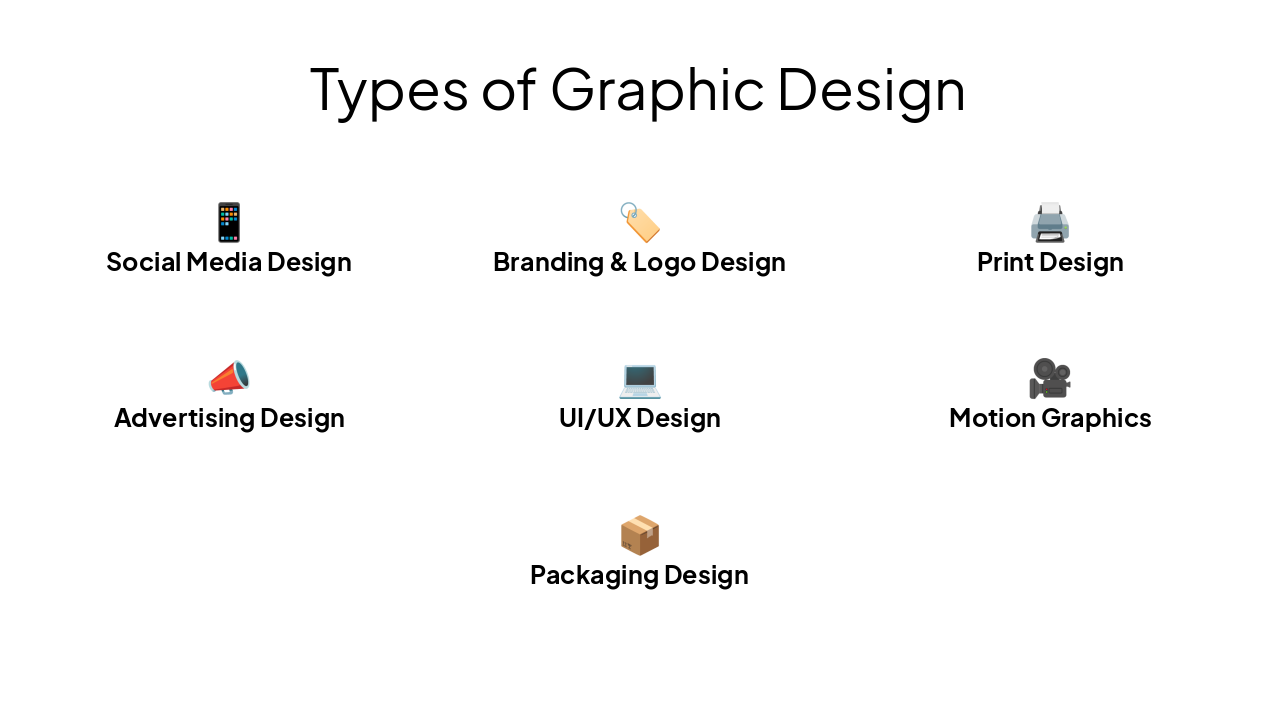
| Beginner Friendly | Professional Tools | Mobile Apps |
|---|---|---|
| Canva | Adobe Photoshop | Canva Mobile |
| Pixellab | Adobe Illustrator | Pixellab |
| Adobe Express | CorelDRAW | Snapseed |
| Figma |
---
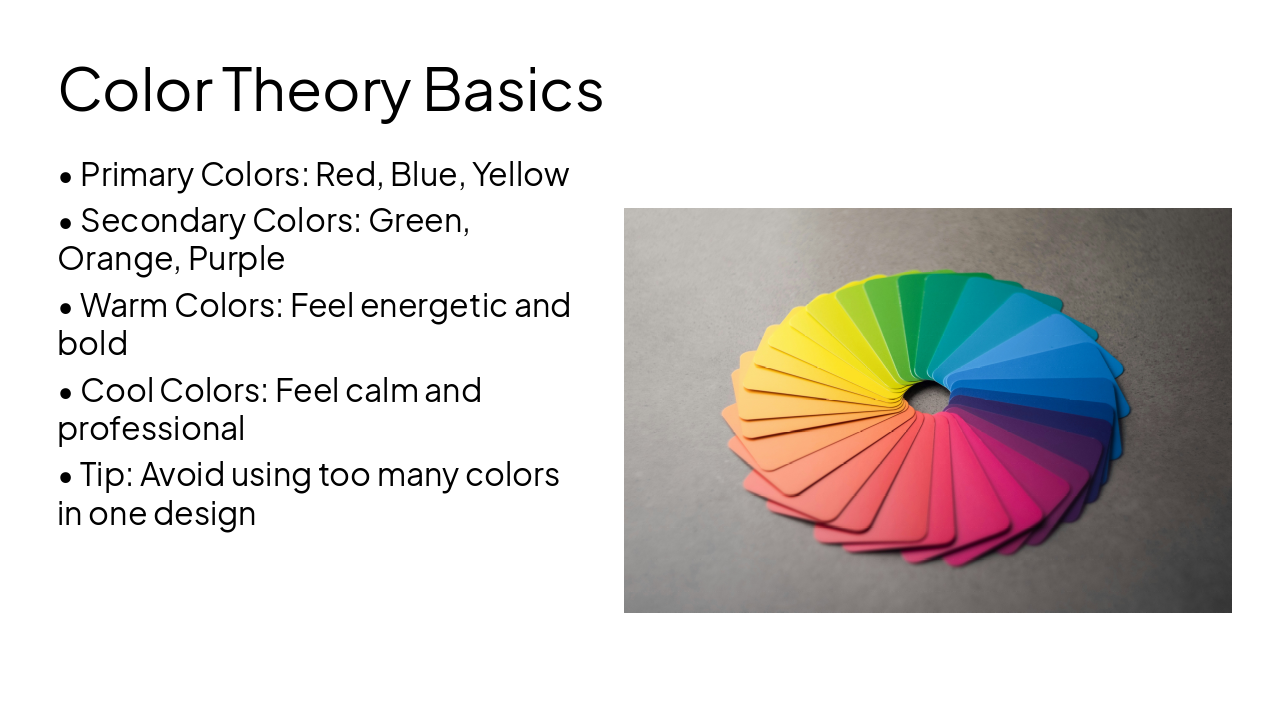
Photo by Andy Brown on Unsplash
🅰️ Serif Fonts Traditional with small lines on letters
𝕬 Sans Serif Fonts Clean modern without serifs
🅱 Script Fonts Handwritten cursive style
🅾 Display Fonts Decorative for headings
📖 Tips Use readable fonts, Avoid too many styles, Proper spacing, Font hierarchy: Heading Bold Large, Body Simple Clean
Use High-quality images Relevant visuals Clear and sharp photos
Avoid Blurry images Overused visuals Poorly cropped pictures Tip: Images should support your message
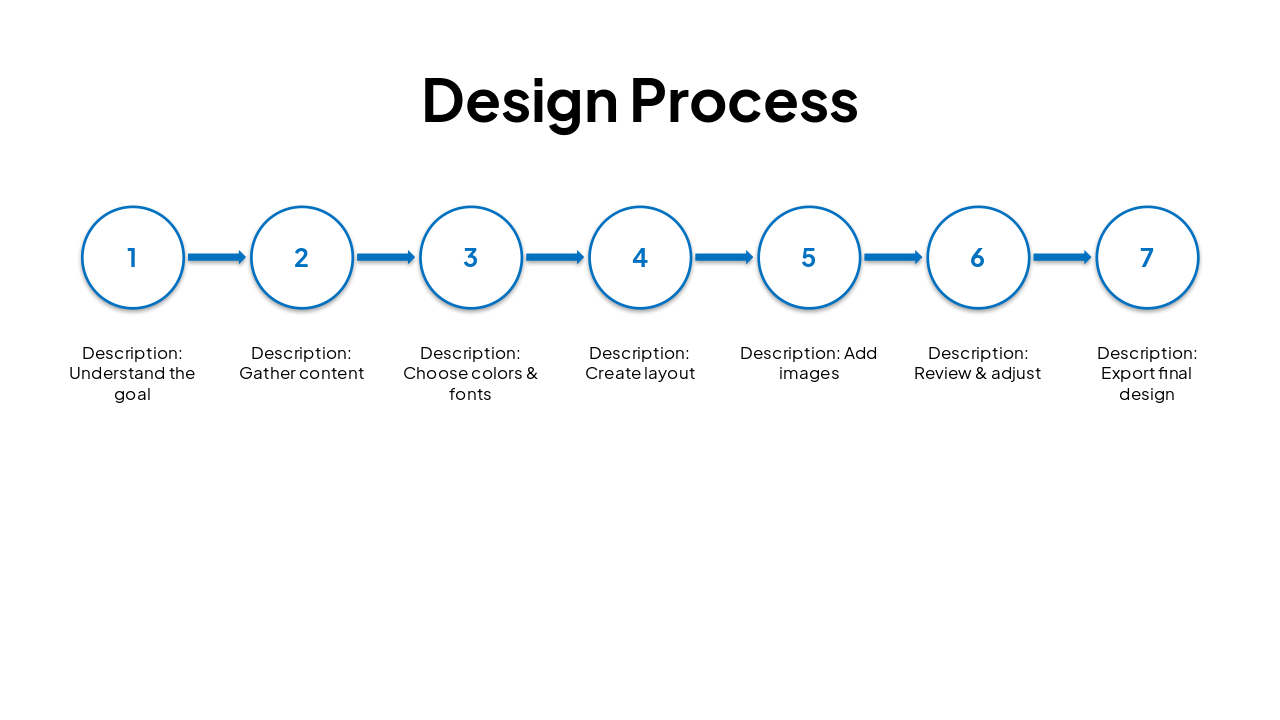
| Step | Description |
|---|---|
| 1 | Understand the goal |
| 2 | Gather content |
| 3 | Choose colors & fonts |
| 4 | Create layout |
| 5 | Add images |
| 6 | Review & adjust |
| 7 | Export final design |
💼 Freelancing & Platforms Fiverr, Upwork, Instagram, LinkedIn; Social media management, Branding services
🏢 Other Ways Printing business, Content creation, Agency work
📈 Keys to Improve Practice consistently, Study good designs, Learn color & typography, Build portfolio, Stay creative
💬 Quote “Good design communicates before words are even read.”
---
Photo by dlxmedia.hu on Unsplash
Any Questions?
Contact: Phone 09063836269, Email joelobiabo@gmail.com, Instagram @joelobiabo
---
Photo by Ray Kim on Unsplash

Explore thousands of AI-generated presentations for inspiration
Generate professional presentations in seconds with Karaf's AI. Customize this presentation or start from scratch.