Slide 1 of 20
Slide 1 - Microsoft Word Complete Beginner Course – Class 9 IT (Hinglish)
Microsoft Word Complete Beginner Course Class 9 IT (Hinglish)
Full Professional Training | Beginner to Advanced
Generated from prompt:
Create a professionally designed PowerPoint presentation titled "Microsoft Word Complete Beginner Course – Class 9 IT (Hinglish)". Design Theme: - Modern, clean academic theme - Blue and white color scheme - Soft gradient backgrounds - Icons for each module - Consistent header and footer with course name - Visual placeholders for screenshots and illustrations - Student-friendly fonts - Attractive section divider slides for each module Structure: Slide 1: Title Slide - Course Title - Subtitle: Full Professional Training - Teacher illustration placeholder Slide 2: Course Overview - What students will learn - Beginner to Advanced journey Module Divider Slides for each module (12 modules total) MODULE 1 – Introduction to MS Word (Slides 3–12) Create detailed slides for: - Welcome - What is MS Word - Uses - Word Processing meaning - Features - Versions - How it helps students - Opening Word - New Document - Course Roadmap Each slide must include: • Explanation • Steps • Example • Practice Task • Visual placeholder MODULE 2 – Interface & Ribbon (Slides 13–22) Include detailed structured slides for: - Interface Overview - Title Bar - Quick Access Toolbar - Ribbon - Home Tab - Insert Tab - Layout Tab - References Tab - Review Tab - View Tab Each slide with explanation, steps, example, practice, visual area. MODULE 3 – Typing & Editing (Slides 23–37) Detailed slides covering typing basics, cursor, enter, backspace, delete, select, copy, cut, paste, undo, redo, find, replace, word wrap, insert vs overtype, practice. MODULE 4 – Save & Save As (Slides 38–47) Include saving basics, file types, autosave, shortcuts, naming rules, cloud saving, practice. MODULE 5 – Formatting (Slides 48–72) Font formatting, paragraph formatting, bullets, numbering, borders, shading, styles, format painter, practice tasks. MODULE 6 – Insert Tab (Slides 73–97) Tables, pictures, shapes, icons, SmartArt, charts, text box, WordArt, header/footer, page numbers, symbols, screenshot, practice. MODULE 7 – Layout Tab (Slides 98–107) Margins, orientation, size, columns, breaks, line numbers, hyphenation, practice. MODULE 8 – References Tab (Slides 108–114) TOC, footnotes, citations, bibliography, captions, index, practice. MODULE 9 – Review Tab (Slides 115–120) Spelling, thesaurus, word count, comments, track changes, protect document. MODULE 10 – View Tab (Slides 121–125) Read mode, print layout, web layout, zoom, navigation pane. MODULE 11 – Practical Exercises (Slides 126–129) Letter writing Resume School notice Project report MODULE 12 – Real Life Practice (Slides 130–132) Homework template Exam practice Final challenge task Ensure: - Each slide has structured bullet sections - Hinglish language tone - Student-friendly explanation - Professional formatting - Consistent design Total slides: Approximately 130–135 slides. Make it visually attractive and classroom ready.
Yeh Microsoft Word ka pura beginner course hai Class 9 IT ke liye Hinglish mein. Introduction, interface & ribbon, typing-editing, save, formatting, insert tab, layout, references, practical exercises jaise formal letter, resume tak sab sikhaata hai.
Microsoft Word Complete Beginner Course Class 9 IT (Hinglish)
Full Professional Training | Beginner to Advanced
1
Welcome to the World of Word Processing | Beginner Basics
---
Photo by Codioful (Formerly Gradienta) on Unsplash
Source: Wikipedia: Microsoft Office
---
Photo by Ed Hardie on Unsplash
2
Explore Word's User Interface | Tabbed Toolbars Explained
---
Photo by Hassaan Here on Unsplash
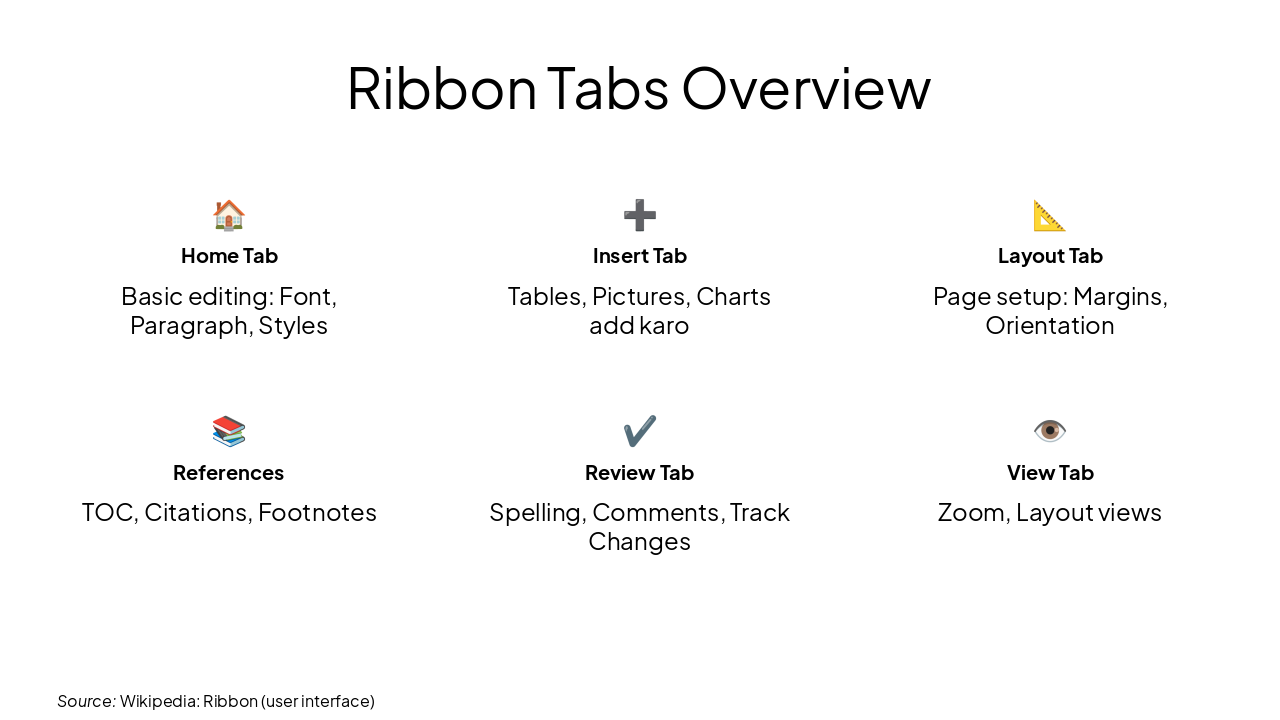
🏠 Home Tab Basic editing: Font, Paragraph, Styles
➕ Insert Tab Tables, Pictures, Charts add karo
📐 Layout Tab Page setup: Margins, Orientation
📚 References TOC, Citations, Footnotes
✔️ Review Tab Spelling, Comments, Track Changes
👁️ View Tab Zoom, Layout views
Source: Wikipedia: Ribbon (user interface)
Source: Wikipedia: Ribbon (user interface)
3
Master Basic Text Input & Edits | Cursor se Copy-Paste tak
---
Photo by André Julien on Unsplash
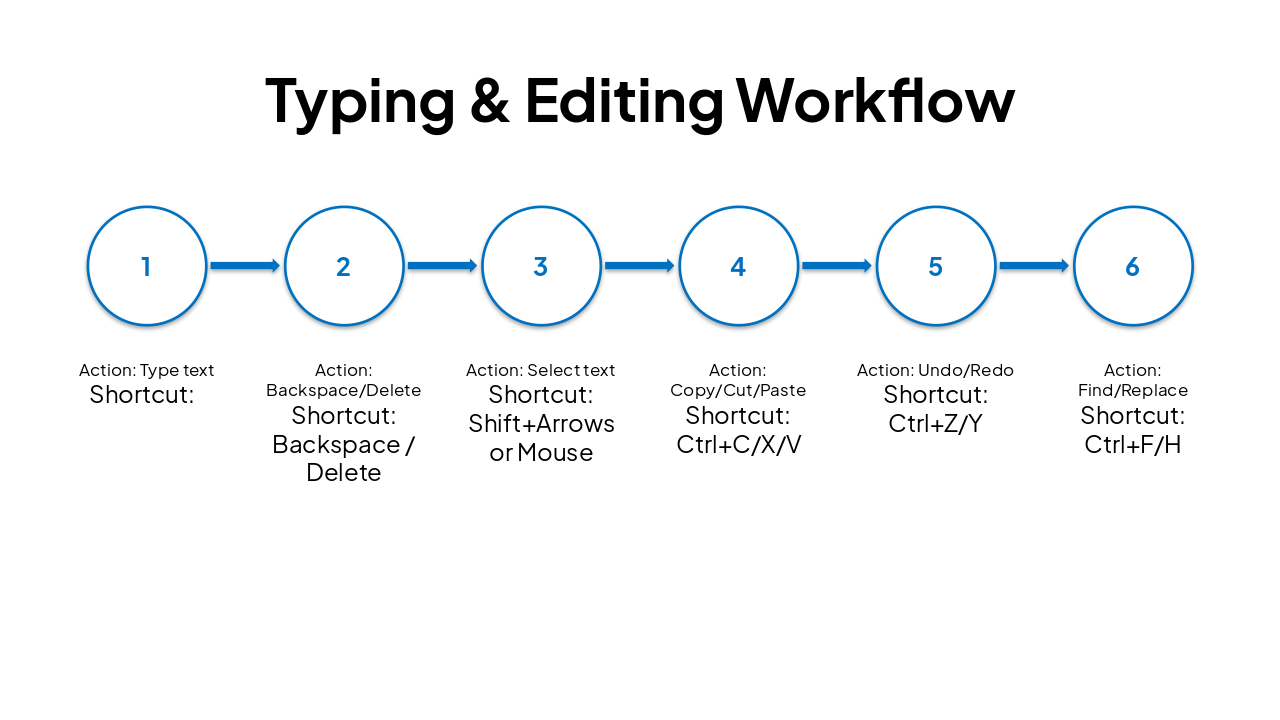
| Step | Action | Shortcut |
|---|---|---|
| 1 | Type text | |
| 2 | Backspace/Delete | Backspace / Delete |
| 3 | Select text | Shift+Arrows or Mouse |
| 4 | Copy/Cut/Paste | Ctrl+C/X/V |
| 5 | Undo/Redo | Ctrl+Z/Y |
| 6 | Find/Replace | Ctrl+F/H |
4
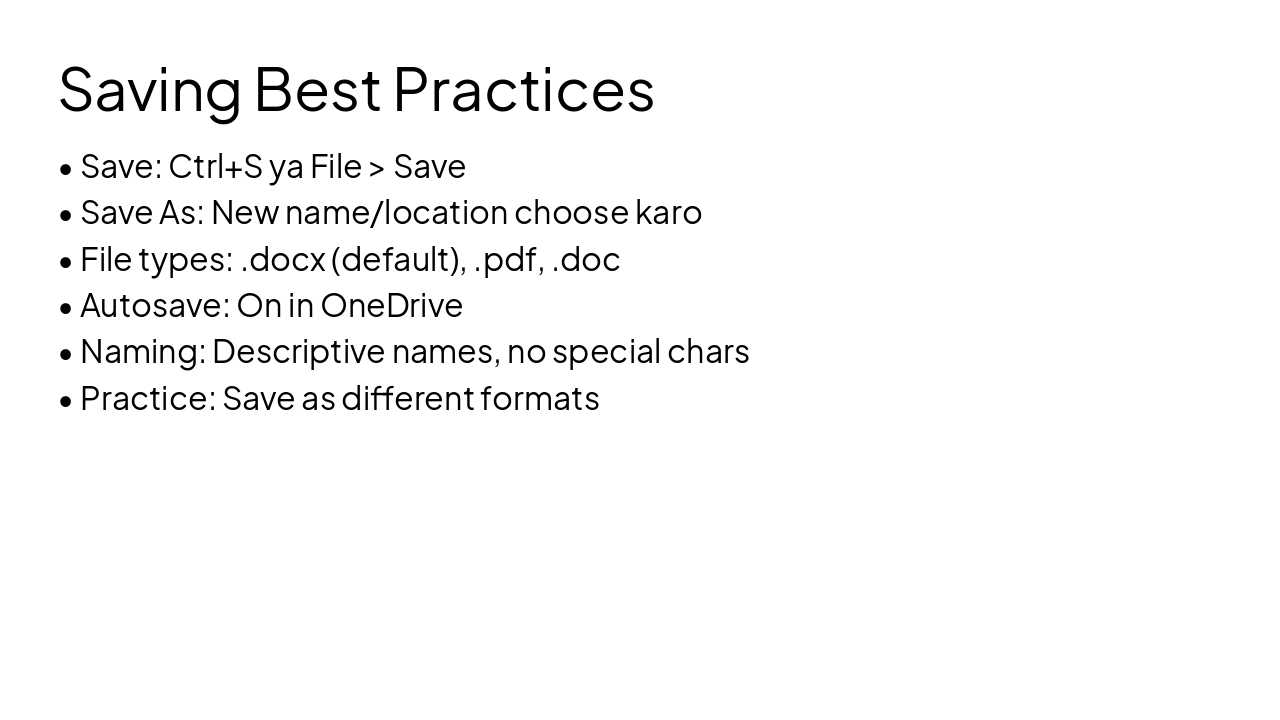
Document Secure Karo | File Types & Cloud Save
---
Photo by Codioful (Formerly Gradienta) on Unsplash

5
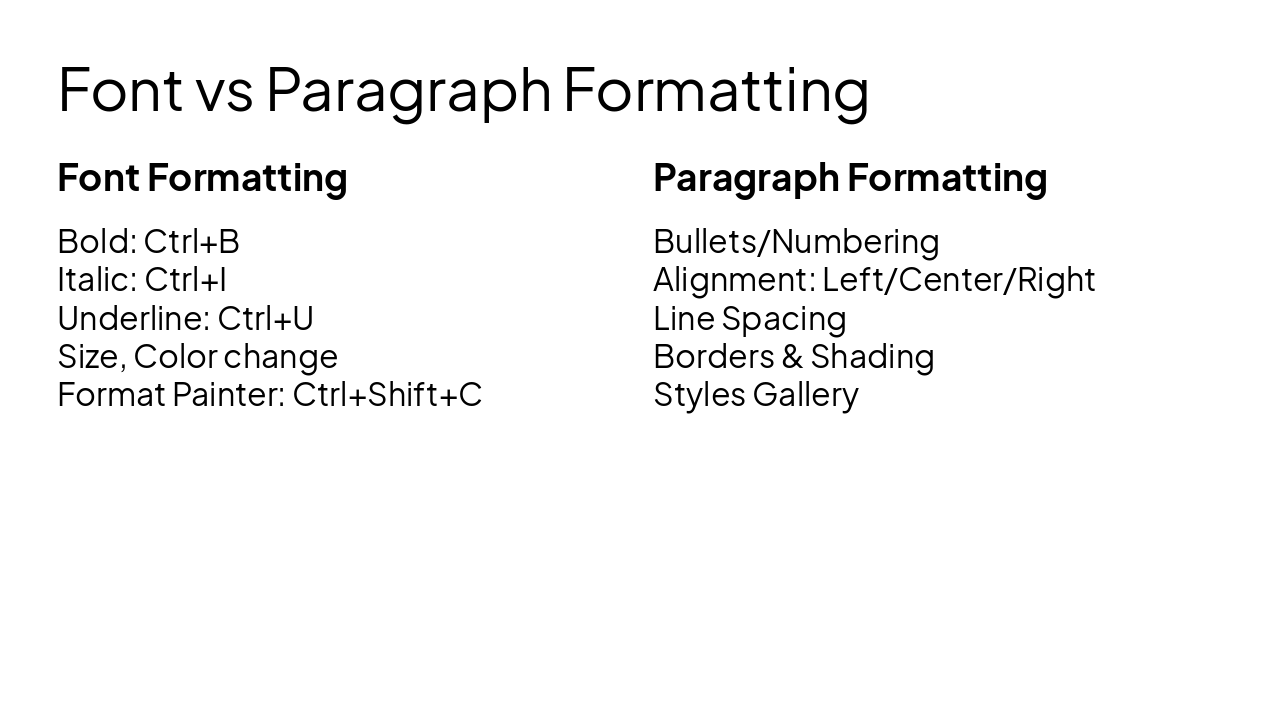
Font, Paragraph, Bullets - Sab Stylish Banao!
Font Formatting Bold: Ctrl+B Italic: Ctrl+I Underline: Ctrl+U Size, Color change Format Painter: Ctrl+Shift+C
Paragraph Formatting Bullets/Numbering Alignment: Left/Center/Right Line Spacing Borders & Shading Styles Gallery
6
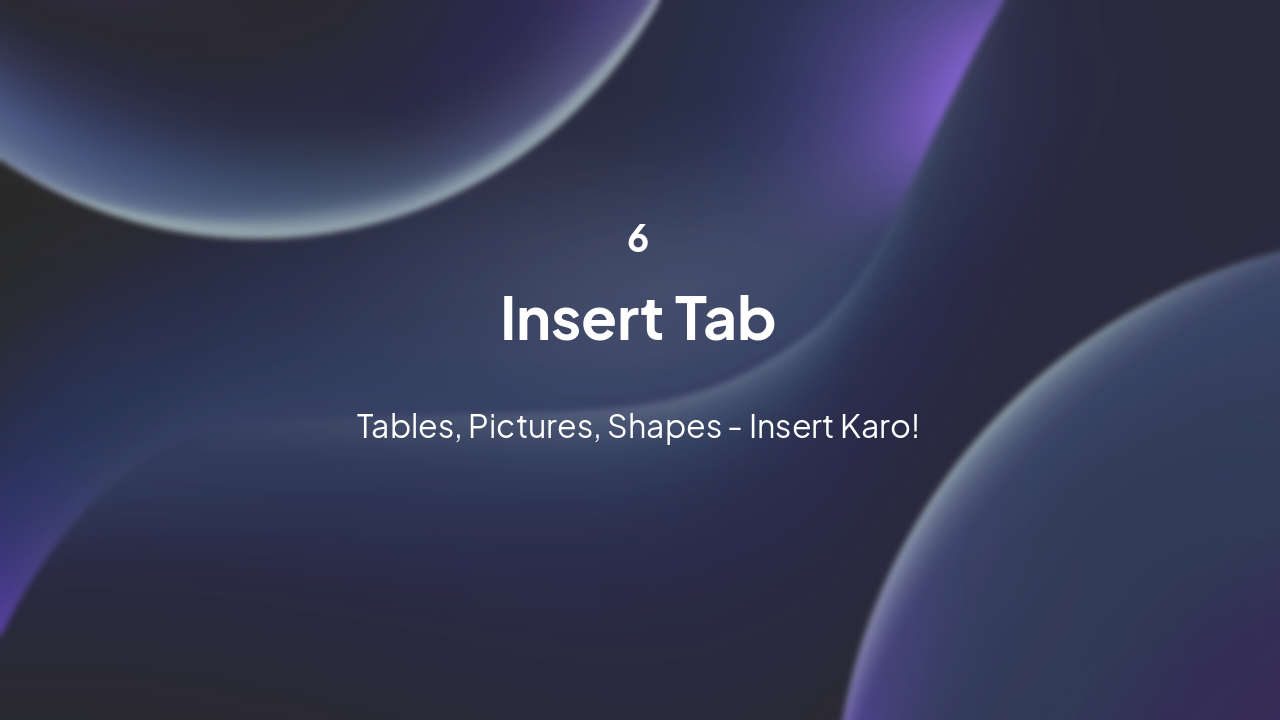
Tables, Pictures, Shapes - Insert Karo!
---
Photo by BoliviaInteligente on Unsplash
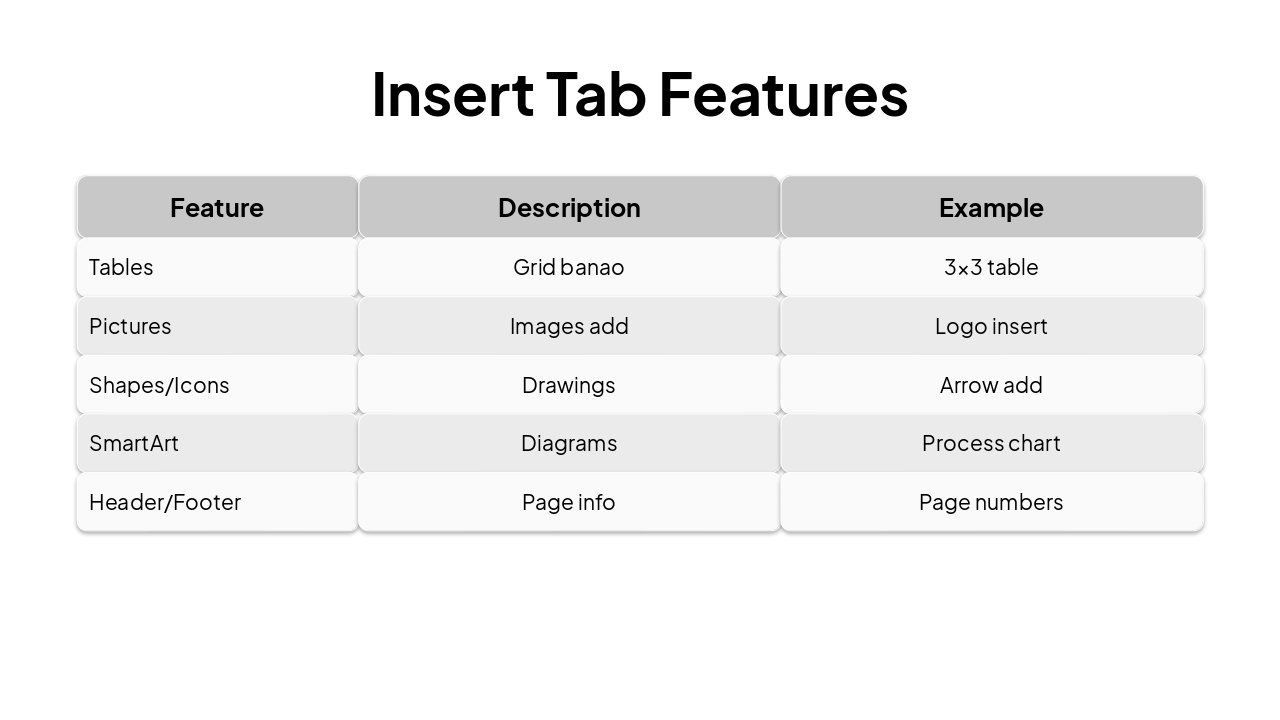
| Feature | Description | Example |
|---|---|---|
| Tables | Grid banao | 3x3 table |
| Pictures | Images add | Logo insert |
| Shapes/Icons | Drawings | Arrow add |
| SmartArt | Diagrams | Process chart |
| Header/Footer | Page info | Page numbers |
7
Page Setup se Document Protection tak | Quick Overview (Full details in upgrade)
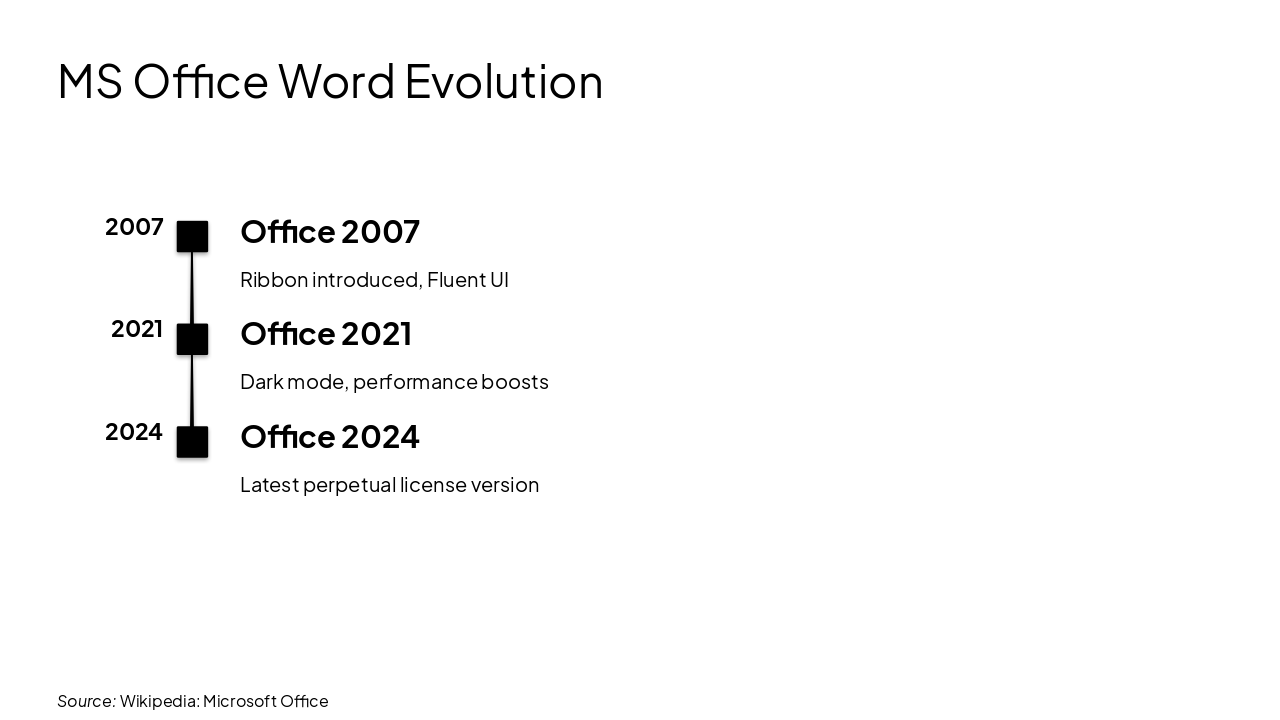
2007: Office 2007 Ribbon introduced, Fluent UI 2021: Office 2021 Dark mode, performance boosts 2024: Office 2024 Latest perpetual license version
Source: Wikipedia: Microsoft Office
11
Apply Skills: Letters, Resumes, Projects | Homework & Challenges
---
Photo by Jun Ren on Unsplash
Explore thousands of AI-generated presentations for inspiration
Generate professional presentations in seconds with Karaf's AI. Customize this presentation or start from scratch.