Hotels.com Booking Journey

Generated from prompt:

Create a PowerPoint presentation titled 'Hotels.com User Booking Journey'. The presentation should visually narrate the step-by-step journey of a user booking a hotel. Include these slides: 1. **Search & Filter Hotels** – Screenshot of search results and filter options. 2. **View Hotel Details** – Screenshot of the hotel detail page, showing key information and location map. 3. **Choose Room Type** – Screenshot showing different room options and pricing. 4. **Enter Guest Details & Payment Info** – Screens showing personal info and payment details. 5. **Review Price Breakdown** – Zoom in on price details, taxes, and total. 6. **Booking Confirmation** – Reservation confirmation page with summary. 7. **Rewards Dashboard** – Hotels.com Rewards overview with balance and member status. 8. **Reward Details** – Screenshot showing detailed reward transactions and unlocked/pending rewards. Keep original colors and screenshots exactly as they are. Add smooth zoom transitions between slides to highlight key UI elements (like price, buttons, and reward amounts). Use a clean, modern layout with minimal text. Title each slide clearly to indicate the stage of the booking journey.

Visual step-by-step guide to Hotels.com user flow: search/filter hotels, view details, select rooms, enter details/payment, review prices, confirm booking, and explore rewards dashboard/transactions.

December 6, 20259 slides
Slide 1 of 9

Slide 1 - Hotels.com User Booking Journey

This is a title slide titled "Hotels.com User Booking Journey." The subtitle describes it as a visual step-by-step narration of a user booking a hotel on Hotels.com.

Hotels.com User Booking Journey

Visual step-by-step narration of a user booking a hotel on Hotels.com.

Slide 1 - Hotels.com User Booking Journey
Slide 2 of 9

Slide 2 - 1. Search & Filter Hotels

The slide illustrates searching for hotels by entering a destination and dates in the search bar. It highlights filtering results by price, star rating, and amenities like free Wi-Fi and pool, while spotlighting top matching options.

1. Search & Filter Hotels

!Image

  • Enter destination and dates in search bar
  • Filter results by price and star rating
  • Select amenities like free Wi-Fi and pool
  • Highlight top matching hotel options

Source: Hotels.com

Speaker Notes
Screenshot of search results page and filter options (price, stars, amenities). Highlight search bar and filters.
Slide 2 - 1. Search & Filter Hotels
Slide 3 of 9

Slide 3 - 2. View Hotel Details

The slide "2. View Hotel Details" features an image and key actions for exploring hotels. It lists exploring photos and descriptions, reading guest reviews and ratings, interacting with the location map, and viewing amenities and pricing.

2. View Hotel Details

!Image

  • Explore photos and hotel description
  • Read guest reviews and ratings
  • Interact with location map
  • View amenities and pricing details

Source: Image from Wikipedia article "Booking.com"

Slide 3 - 2. View Hotel Details
Slide 4 of 9

Slide 4 - 3. Choose Room Type

This slide, titled "3. Choose Room Type," shows various room options with photos, features, and amenities. It enables checking real-time availability, comparing prices, and booking.

3. Choose Room Type

!Image

  • Select from various room options
  • View photos, features, and amenities
  • Check real-time availability
  • Compare prices and book

Source: Hotels.com

Slide 4 - 3. Choose Room Type
Slide 5 of 9

Slide 5 - 4. Enter Guest Details & Payment Info

This slide guides users to accurately enter name, email, and phone details, and securely input card number, expiry, and CVV. It also recommends applying a promo code for discounts and reviewing all details before proceeding.

4. Enter Guest Details & Payment Info

  • Enter name, email, and phone details accurately.
  • Input card number, expiry, CVV securely.
  • Apply promo code for potential discounts.
  • Review details before proceeding.

Source: hotel booking process

Speaker Notes
Screenshots of guest info form (name, contact) and payment section (card details, promo code).
Slide 5 - 4. Enter Guest Details & Payment Info
Slide 6 of 9

Slide 6 - 5. Review Price Breakdown

This slide, titled "5. Review Price Breakdown," provides a detailed overview of booking costs. It lists the nightly rate for selected dates, taxes, fees, and additional charges, applied discounts and promotions, and the final total amount summary.

5. Review Price Breakdown

!Image

  • Nightly rate for selected dates
  • Taxes, fees, and additional charges
  • Discounts and promotions applied
  • Final total amount summary

Source: Hotels.com

Slide 6 - 5. Review Price Breakdown
Slide 7 of 9

Slide 7 - 6. Booking Confirmation

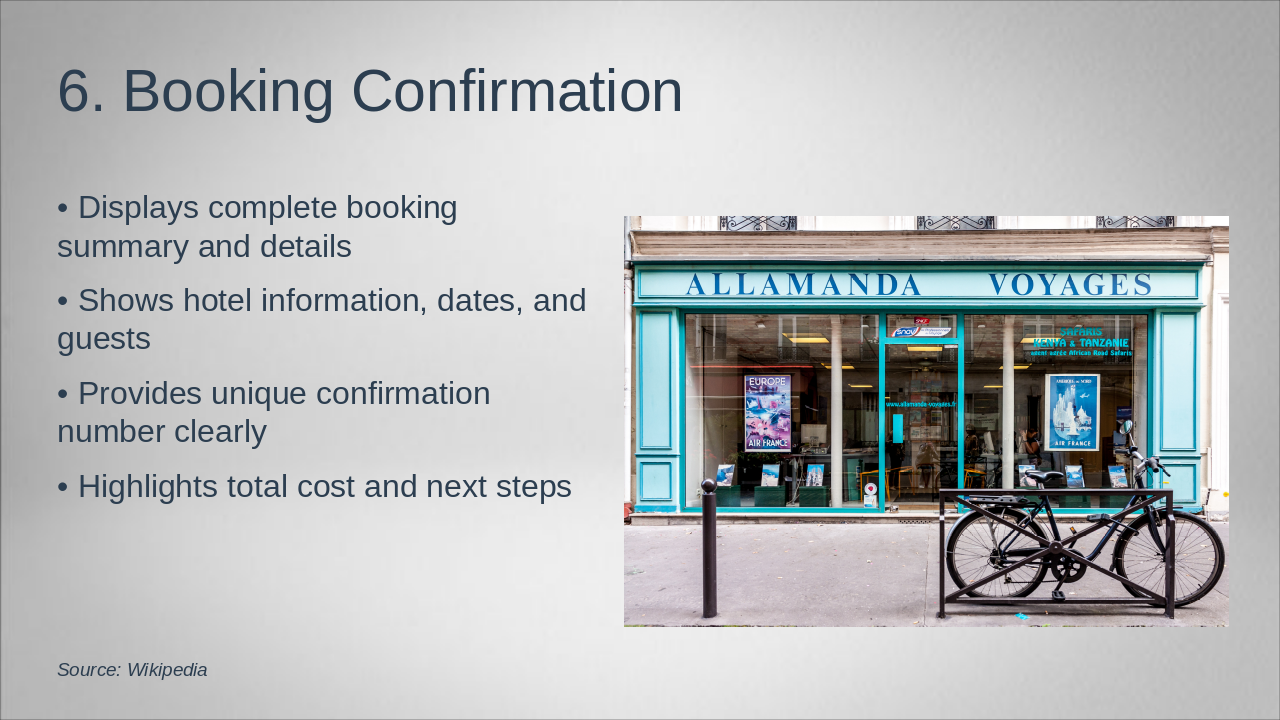
This slide shows a complete booking confirmation summary, including hotel details, dates, and guest information. It highlights a unique confirmation number, total cost, and next steps.

6. Booking Confirmation

!Image

  • Displays complete booking summary and details
  • Shows hotel information, dates, and guests
  • Provides unique confirmation number clearly
  • Highlights total cost and next steps

Source: Wikipedia

Speaker Notes
Confirmation page screenshot with booking summary, hotel details, dates, and confirmation number.
Slide 7 - 6. Booking Confirmation
Slide 8 of 9

Slide 8 - 7. Rewards Dashboard

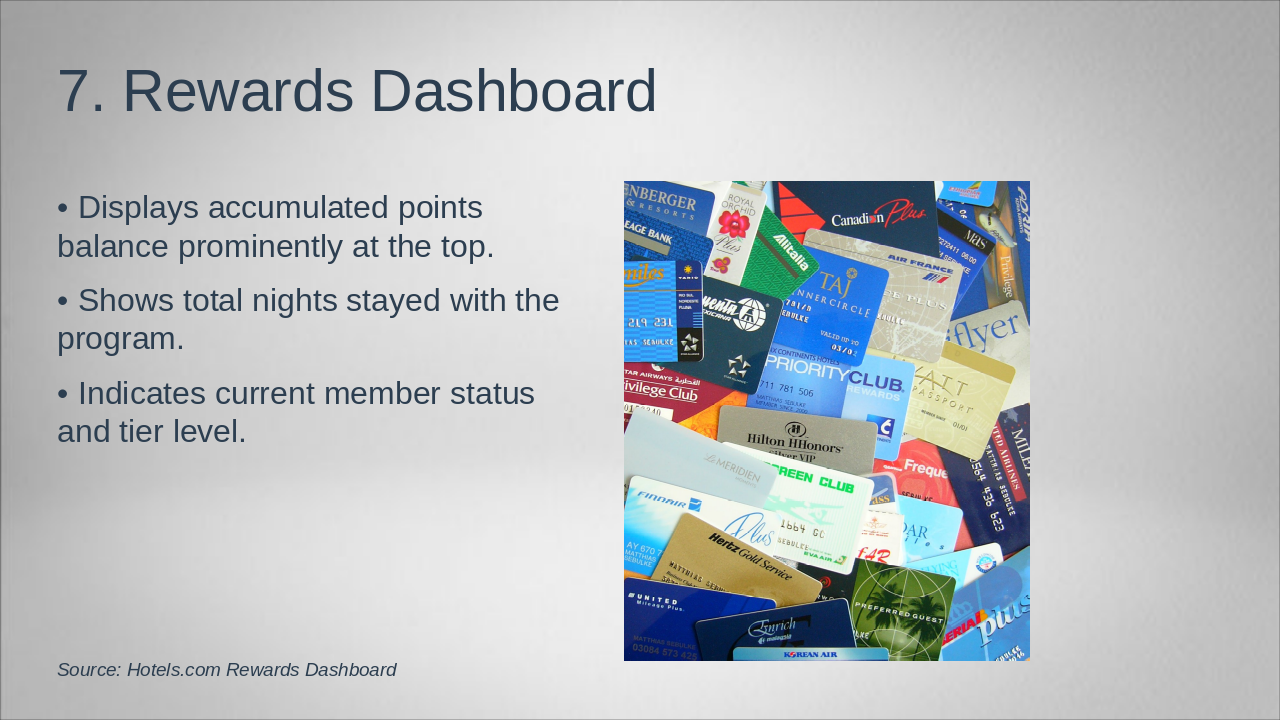
The Rewards Dashboard prominently displays the accumulated points balance at the top. It also shows the total nights stayed with the program and the current member status and tier level.

7. Rewards Dashboard

!Image

  • Displays accumulated points balance prominently at the top.
  • Shows total nights stayed with the program.
  • Indicates current member status and tier level.

Source: Hotels.com Rewards Dashboard

Speaker Notes
Hotels.com Rewards dashboard screenshot showing points balance, nights stayed, and member status. Highlight key UI elements like reward amounts with smooth zoom transitions.
Slide 8 - 7. Rewards Dashboard
Slide 9 of 9

Slide 9 - 8. Reward Details

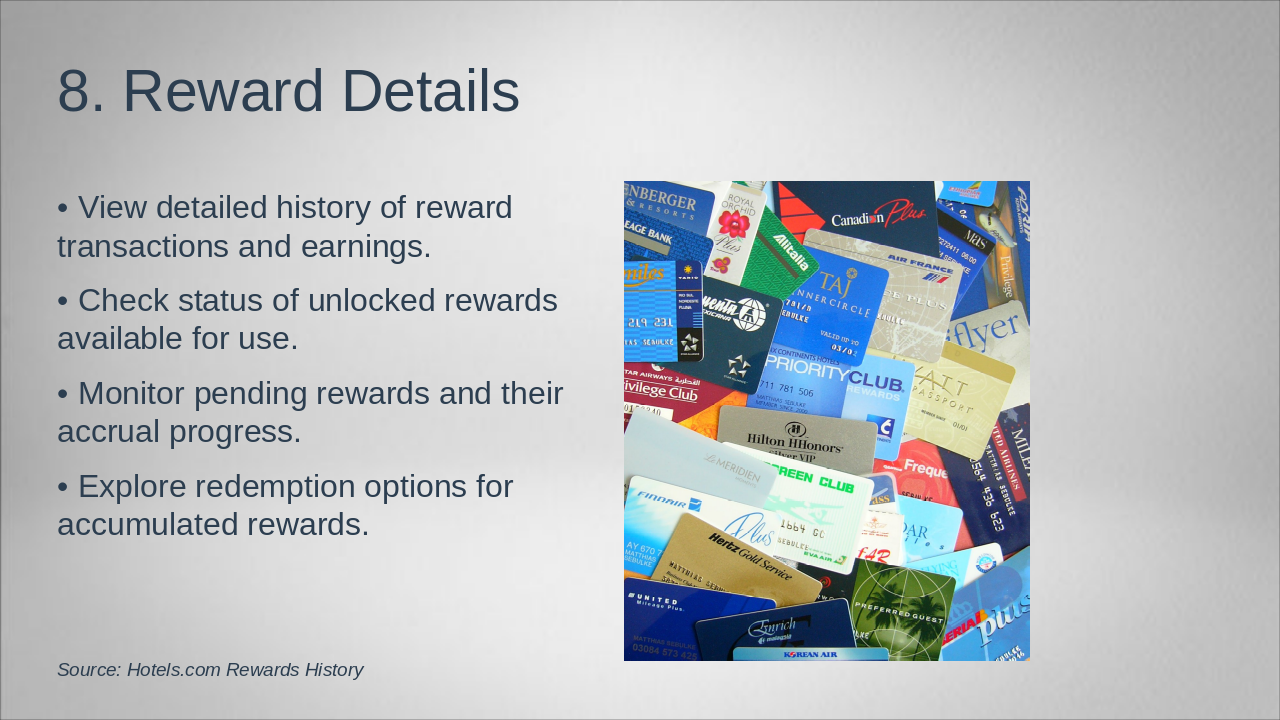
The "Reward Details" slide highlights features for managing rewards. Users can view transaction history and earnings, check unlocked rewards status, monitor pending rewards progress, and explore redemption options.

8. Reward Details

!Image

  • View detailed history of reward transactions and earnings.
  • Check status of unlocked rewards available for use.
  • Monitor pending rewards and their accrual progress.
  • Explore redemption options for accumulated rewards.

Source: Hotels.com Rewards History

Speaker Notes
Screenshot of rewards history with transactions, unlocked/pending rewards, and redemption options.
Slide 9 - 8. Reward Details

Discover More Presentations

Explore thousands of AI-generated presentations for inspiration

Browse Presentations
Powered by AI

Create Your Own Presentation

Generate professional presentations in seconds with Karaf's AI. Customize this presentation or start from scratch.

Create New Presentation

Powered by Karaf.ai — AI-Powered Presentation Generator