Excel Formulas: Overview & Mastery Guide

Generated from prompt:

Create a professional and visually engaging PowerPoint presentation based on the following content about Excel formulas: Slide 1: Title slide - 'Excel Formulas Overview' Slide 2: Total Formulas - Explain total number of formulas in different Excel versions: 2016 (~400), 2019/365 (~450), 2026 (~500+ with AI and dynamic array formulas) Slide 3: Formulas Tab - Show how to access formulas in Excel via the Formulas tab and Function Library Slide 4: Category-wise Count - Table of categories with approximate formulas and examples: - Financial (50+): PMT, FV, NPV - Logical (15): IF, AND, OR, XOR - Text (35+): LEFT, RIGHT, CONCAT, TEXT - Date & Time (30+): TODAY, NOW, DATE, EDATE - Lookup & Reference (25+): VLOOKUP, HLOOKUP, INDEX, MATCH, XLOOKUP - Math & Trig (50+): SUM, SUMIF, PRODUCT, ROUND - Statistical (40+): AVERAGE, MEDIAN, STDEV - Engineering / Cube / Info / Compatibility (60+): ADVANCED, INFO, CUBEVALUE - Recently Added (365 / 2026) (20+): FILTER, SORT, UNIQUE, SEQUENCE, LET, LAMBDA Slide 5: Practice Tip - Best way to remember formulas is through practice: pick 2–3 from each category, use in real examples, check syntax via Insert Function (fx) Make it colorful, easy to read, and professional.

Concise 5-slide PPT on Excel formulas across versions (400-500+), access via Formulas tab, category breakdowns (e.g., Financial, Logical), and practice tips for mastery. Colorful, professional design.

January 31, 20265 slides
Slide 1 of 5

Slide 1 - Excel Formulas Overview

This title slide, titled "Excel Formulas Overview," features the main text "Master Excel Formulas Across All Versions." Its subtitle describes a "Comprehensive Guide to Functions, Categories & Best Practices."

Master Excel Formulas

Across All Versions

Comprehensive Guide to Functions, Categories & Best Practices

Source: Excel Formulas Presentation

Speaker Notes
Professional introduction slide to Excel formulas across versions and categories.
Slide 1 - Excel Formulas Overview
Slide 2 of 5

Slide 2 - Total Formulas by Excel Version

Excel 2016 offers around 400 core formulas, while Excel 2019/365 expands this to about 450 with an enhanced function library. Excel 2026 pushes beyond 500 formulas, incorporating AI features and dynamic arrays like FILTER and SORT.

Total Formulas by Excel Version

  • ~400: Excel 2016
  • Core formulas available

  • ~450: Excel 2019/365
  • Expanded function library

  • ~500+: Excel 2026

AI & dynamic arrays (FILTER, SORT) Source: Excel Evolution Data

Slide 2 - Total Formulas by Excel Version
Slide 3 of 5

Slide 3 - Accessing Formulas

To access formulas in Excel, navigate to the Formulas tab on the ribbon and explore the Function Library groups for categorized functions. Click the Insert Function (fx) button for syntax help and additional guidance.

Accessing Formulas

  • Navigate to the Formulas tab on Excel ribbon
  • Explore Function Library groups for categorized functions
  • Click Insert Function (fx) button for syntax help

Source: Excel Formulas Overview

Speaker Notes
Demonstrate navigating to Formulas tab, exploring Function Library groups, and using Insert Function for quick syntax help.
Slide 3 - Accessing Formulas
Slide 4 of 5

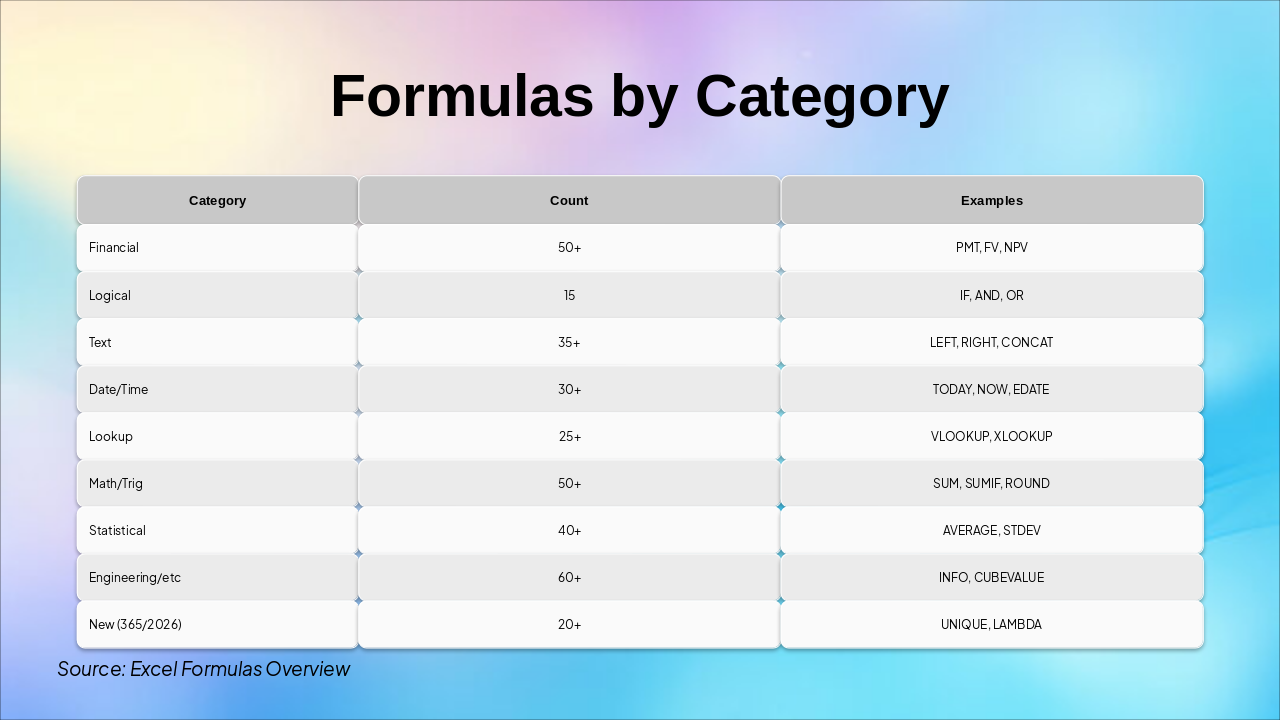
Slide 4 - Formulas by Category

The slide presents a table categorizing Excel formulas by type, including counts and examples for categories like Financial (50+, e.g., PMT, FV, NPV), Logical (15, e.g., IF, AND, OR), and others up to Engineering (60+) and new 365/2026 functions (20+, e.g., UNIQUE, LAMBDA). It highlights the abundance of formulas, with Math/Trig and Financial leading at over 50 each.

Formulas by Category

CategoryCountExamples
Financial50+PMT, FV, NPV
Logical15IF, AND, OR
Text35+LEFT, RIGHT, CONCAT
Date/Time30+TODAY, NOW, EDATE
Lookup25+VLOOKUP, XLOOKUP
Math/Trig50+SUM, SUMIF, ROUND
Statistical40+AVERAGE, STDEV
Engineering/etc60+INFO, CUBEVALUE
New (365/2026)20+UNIQUE, LAMBDA

Source: Excel Formulas Overview

Slide 4 - Formulas by Category
Slide 5 of 5

Slide 5 - Practice Tip

Practice 2-3 formulas per category to build memory, apply them in real-world examples for mastery, and verify syntax using the Insert Function (fx) button. This practice tip emphasizes hands-on repetition and practical application to strengthen formula skills.

Practice Tip

  • Practice 2-3 formulas per category to build memory
  • Apply formulas in real-world examples for mastery
  • Verify syntax using Insert Function (fx) button

Source: Excel Formulas Overview

Slide 5 - Practice Tip

Discover More Presentations

Explore thousands of AI-generated presentations for inspiration

Browse Presentations
Powered by AI

Create Your Own Presentation

Generate professional presentations in seconds with Karaf's AI. Customize this presentation or start from scratch.

Create New Presentation

Powered by Karaf.ai — AI-Powered Presentation Generator