Mastering LMS: Navigate & Use

Generated from prompt:

Gumawa ng ppt presentation patungkol sa How to navigate and use the LMS (Learning Management System)

8-slide guide to LMS basics: definition, login steps, dashboard overview, enrolled course navigation, key features, and tips like checking notifications and saving progress.

December 9, 20258 slides
Slide 1 of 8

Slide 1 - Paano Mag-navigate at Gumamit ng LMS

This title slide is titled "Paano Mag-navigate at Gumamit ng LMS," meaning "How to Navigate and Use the LMS." The subtitle welcomes viewers with "Maligayang pagdating sa gabay sa paggamit ng LMS," or "Welcome to the guide on using the LMS."

Paano Mag-navigate at Gumamit ng LMS

Maligayang pagdating sa gabay sa paggamit ng LMS

Source: Gumawa ng ppt presentation patungkol sa How to navigate and use the LMS (Learning Management System)

Speaker Notes
Maligayang pagdating sa gabay sa paggamit ng Learning Management System (LMS). Matututo kang mag-login, mag-explore ng dashboard, at higit pa.
Slide 1 - Paano Mag-navigate at Gumamit ng LMS
Slide 2 of 8

Slide 2 - Agenda

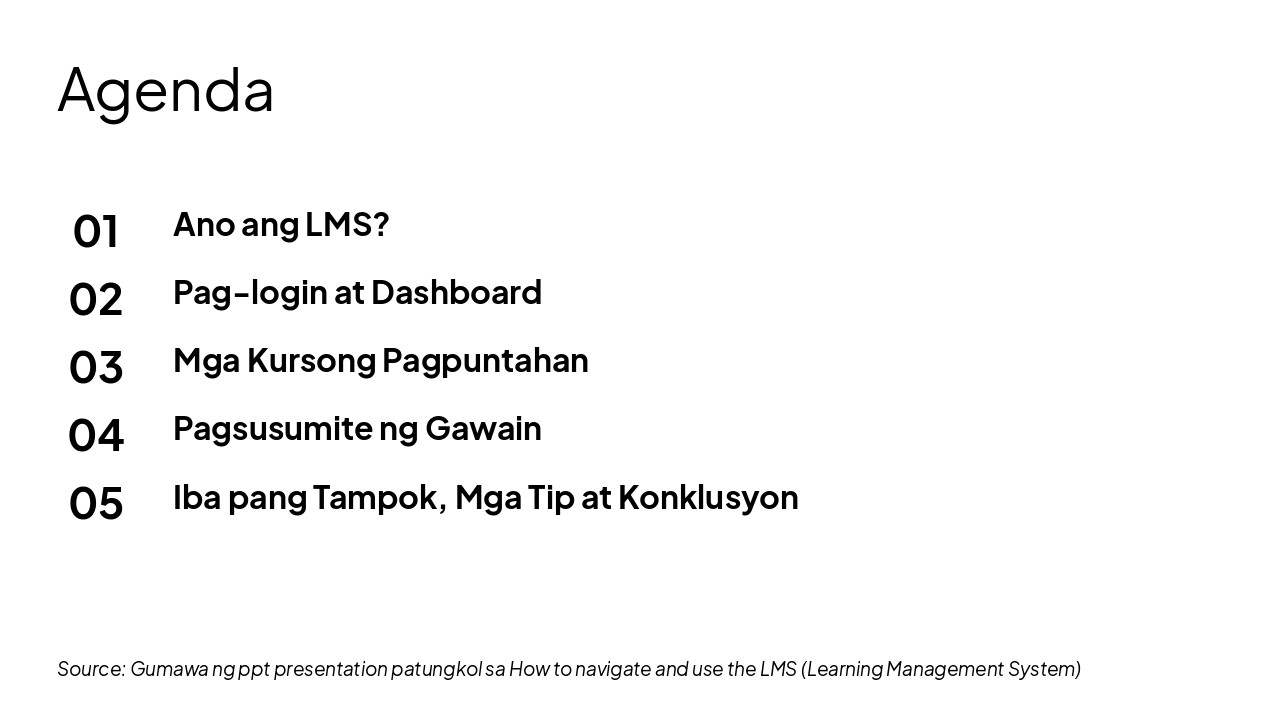
This agenda slide outlines the key topics for a presentation on using an LMS. The items cover "What is LMS?", login and dashboard, navigating courses, submitting assignments, and other features, tips, and conclusion.

Agenda

  1. Ano ang LMS?
  2. Pag-login at Dashboard
  3. Mga Kursong Pagpuntahan
  4. Pagsusumite ng Gawain
  5. Iba pang Tampok, Mga Tip at Konklusyon

Source: Gumawa ng ppt presentation patungkol sa How to navigate and use the LMS (Learning Management System)

Slide 2 - Agenda
Slide 3 of 8

Slide 3 - Ano ang LMS?

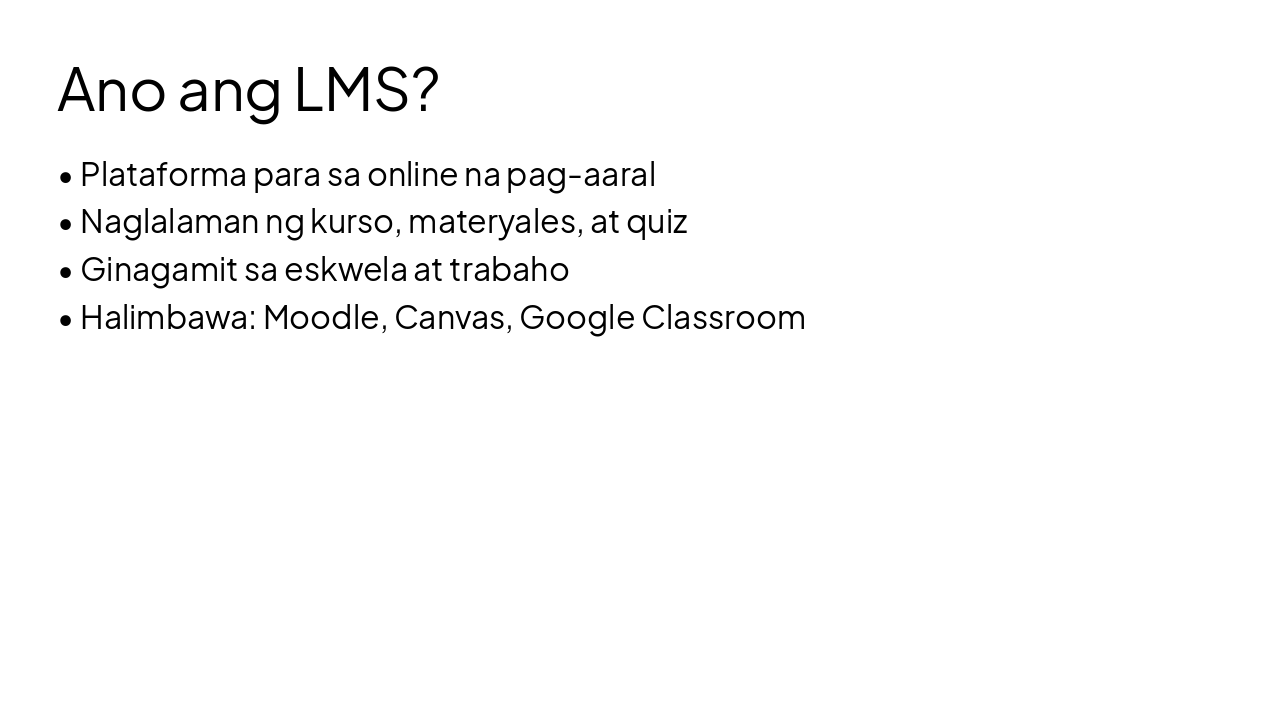
The slide "Ano ang LMS?" defines LMS as a platform for online learning that contains courses, materials, and quizzes. It is used in schools and workplaces, with examples like Moodle, Canvas, and Google Classroom.

Ano ang LMS?

  • Plataforma para sa online na pag-aaral
  • Naglalaman ng kurso, materyales, at quiz
  • Ginagamit sa eskwela at trabaho
  • Halimbawa: Moodle, Canvas, Google Classroom
Slide 3 - Ano ang LMS?
Slide 4 of 8

Slide 4 - Paano Mag-login

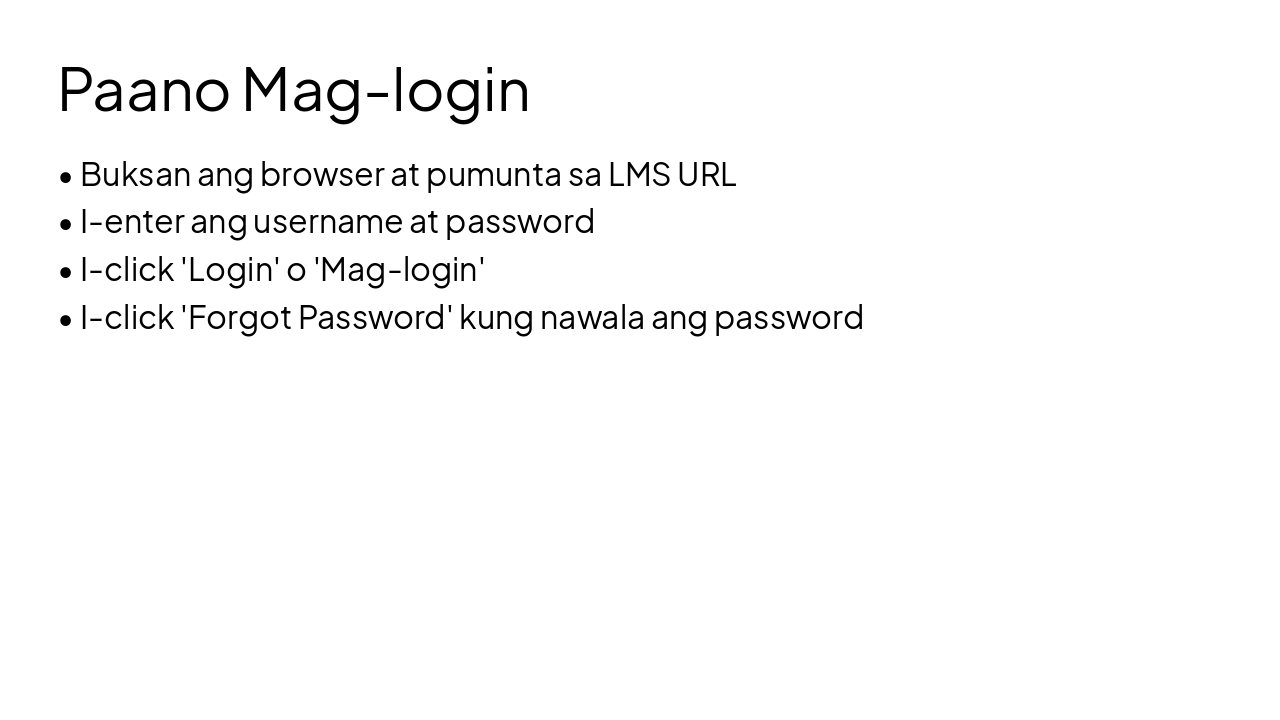
The slide "Paano Mag-login" outlines logging into the LMS by opening a browser, visiting the LMS URL, entering username and password, and clicking "Login." It also advises clicking "Forgot Password" if the password is lost.

Paano Mag-login

  • Buksan ang browser at pumunta sa LMS URL
  • I-enter ang username at password
  • I-click 'Login' o 'Mag-login'
  • I-click 'Forgot Password' kung nawala ang password
Slide 4 - Paano Mag-login
Slide 5 of 8

Slide 5 - Dashboard Overview

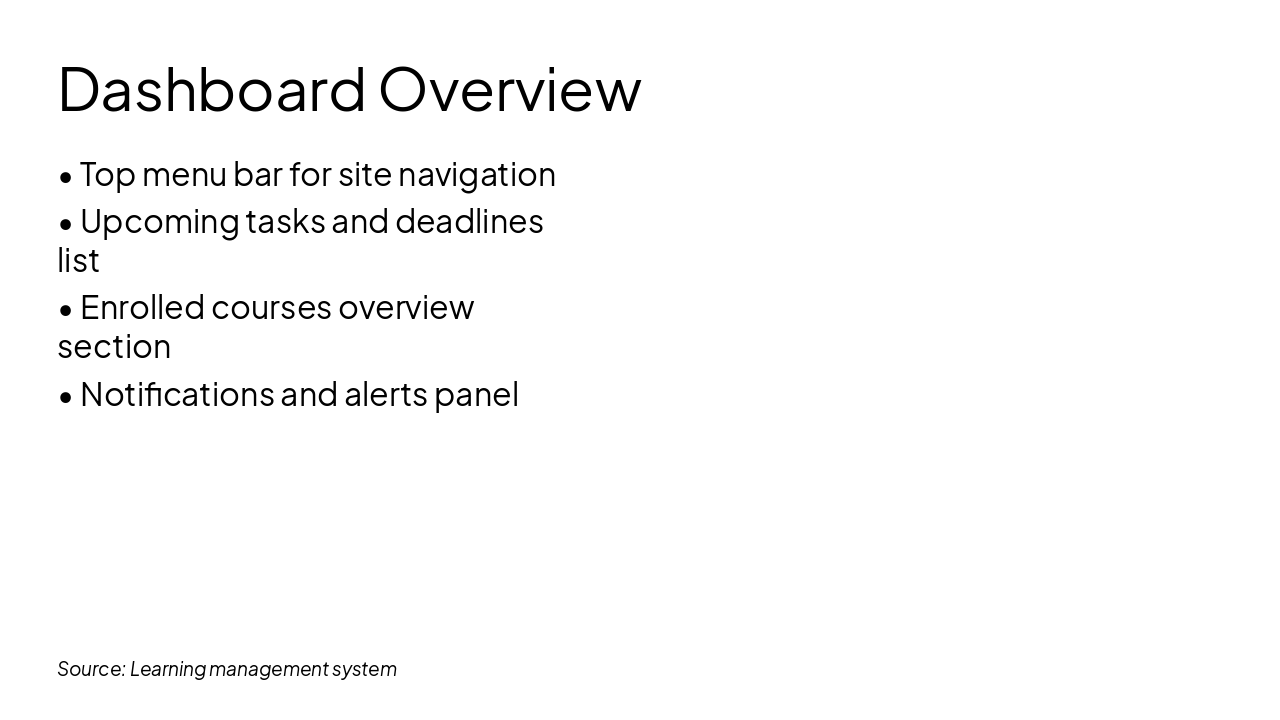
The Dashboard Overview slide showcases a site's main interface with key navigation elements. It highlights a top menu bar, upcoming tasks and deadlines list, enrolled courses section, and notifications panel.

Dashboard Overview

!Image

  • Top menu bar for site navigation
  • Upcoming tasks and deadlines list
  • Enrolled courses overview section
  • Notifications and alerts panel

Source: Learning management system

Speaker Notes
Imagined LMS dashboard with menu bar, upcoming tasks, enrolled courses, and notifications for easy navigation.
Slide 5 - Dashboard Overview
Slide 6 of 8

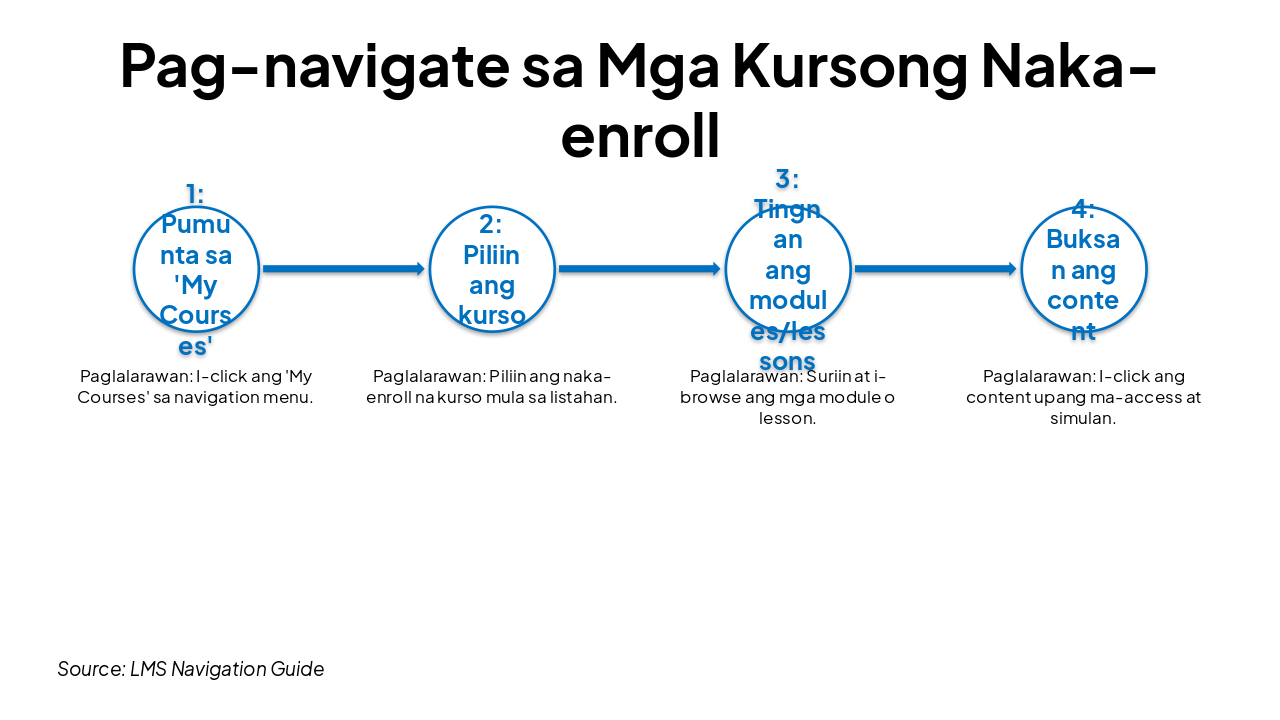
Slide 6 - Pag-navigate sa Mga Kursong Naka-enroll

This slide outlines the workflow for navigating enrolled courses, starting with clicking "My Courses" in the navigation menu. Users then select a course, browse its modules or lessons, and click content to access and start it.

Pag-navigate sa Mga Kursong Naka-enroll

{ "headers": [ "Hakbang", "Paglalarawan" ], "rows": [ [ "1: Pumunta sa 'My Courses'", "I-click ang 'My Courses' sa navigation menu." ], [ "2: Piliin ang kurso", "Piliin ang naka-enroll na kurso mula sa listahan." ], [ "3: Tingnan ang modules/lessons", "Suriin at i-browse ang mga module o lesson." ], [ "4: Buksan ang content", "I-click ang content upang ma-access at simulan." ] ] }

Source: LMS Navigation Guide

Slide 6 - Pag-navigate sa Mga Kursong Naka-enroll
Slide 7 of 8

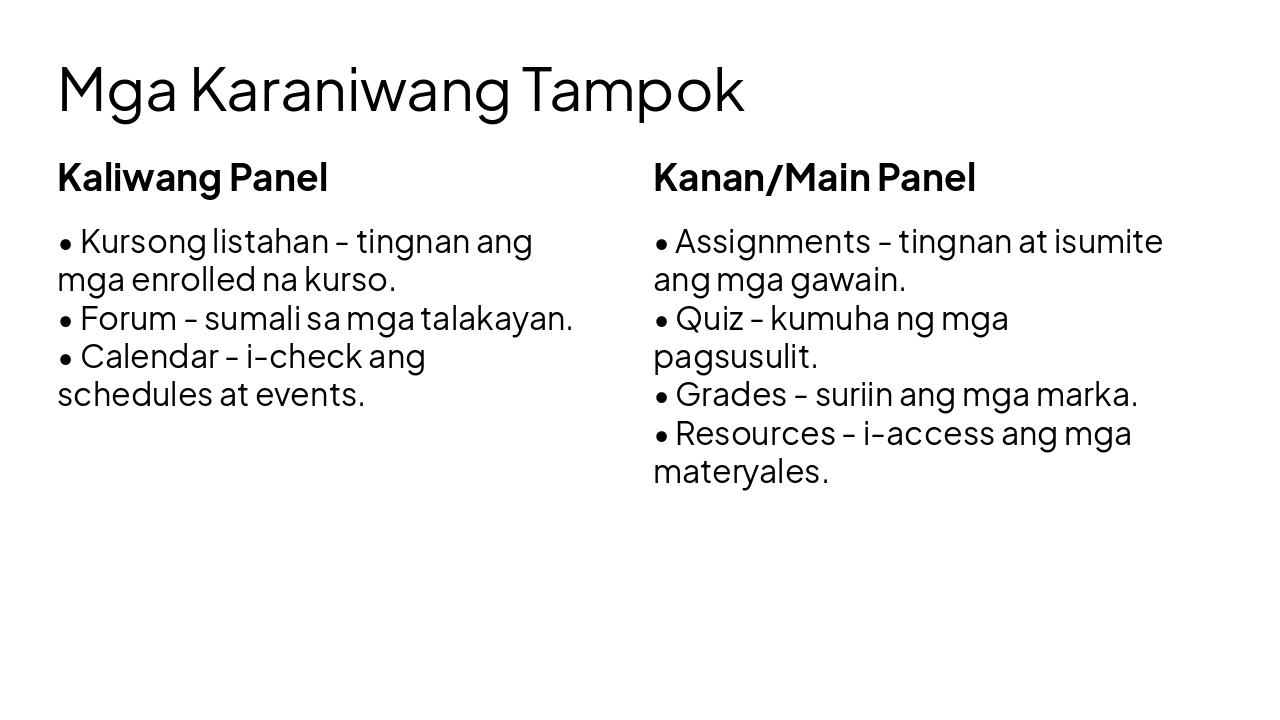
Slide 7 - Mga Karaniwang Tampok

The slide "Mga Karaniwang Tampok" uses a two-column layout to outline common features. The left panel covers Course list (view enrolled courses), Forum (join discussions), and Calendar (check schedules/events), while the right panel lists Assignments (view/submit tasks), Quiz (take tests), Grades (check marks), and Resources (access materials).

Mga Karaniwang Tampok

Kaliwang PanelKanan/Main Panel

| • Kursong listahan - tingnan ang mga enrolled na kurso.

  • Forum - sumali sa mga talakayan.
  • Calendar - i-check ang schedules at events. | • Assignments - tingnan at isumite ang mga gawain.
  • Quiz - kumuha ng mga pagsusulit.
  • Grades - suriin ang mga marka.
  • Resources - i-access ang mga materyales. |
Slide 7 - Mga Karaniwang Tampok
Slide 8 of 8

Slide 8 - Konklusyon at Mga Tip

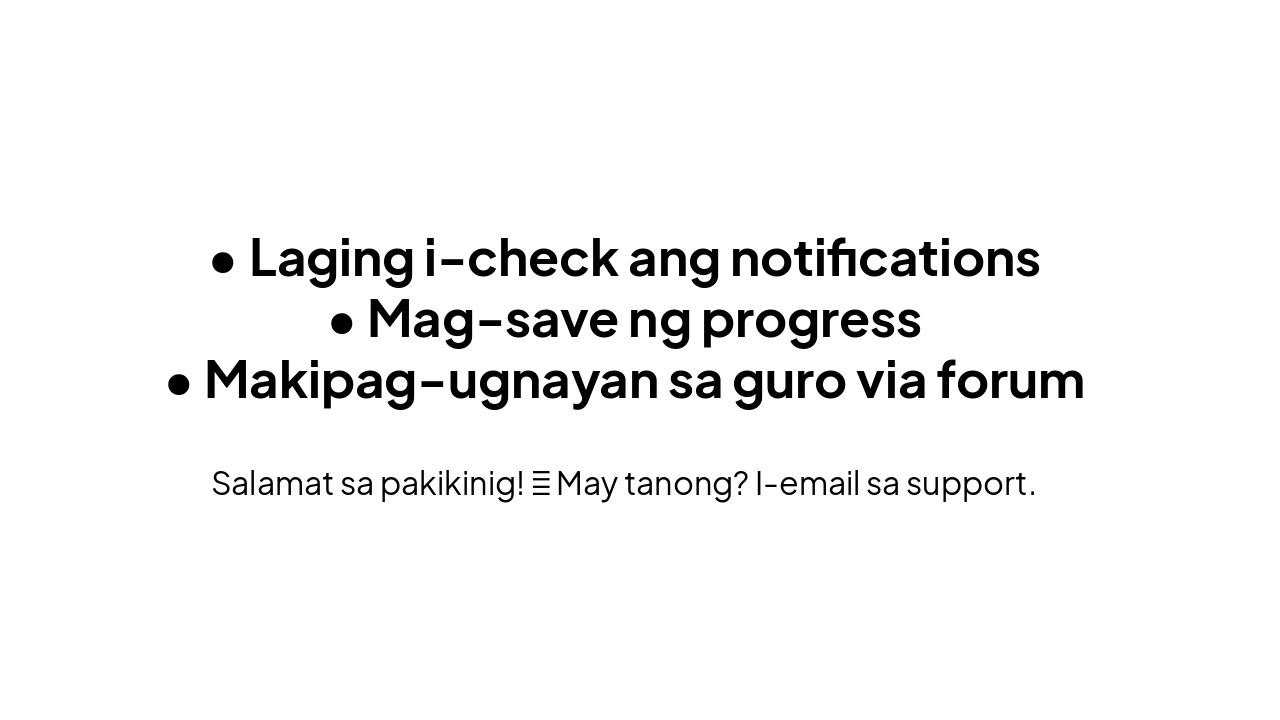
The slide's conclusion offers tips: always check notifications, save progress, and contact the teacher via forum. It thanks listeners and invites questions via email to support.

Konklusyon at Mga Tip

• Laging i-check ang notifications

  • Mag-save ng progress
  • Makipag-ugnayan sa guro via forum

Salamat sa pakikinig! 😊 May tanong? I-email sa support.

Slide 8 - Konklusyon at Mga Tip
Powered by AI

Create Your Own Presentation

Generate professional presentations in seconds with Karaf's AI. Customize this presentation or start from scratch.

Create New Presentation

Powered by Karaf.ai — AI-Powered Presentation Generator